How to Add a Logo to Photos: 8 Apps Compared (2026)
Updated
At first glance, adding a logo to a photo seems like a rather straightforward task – something that pretty much any online editor or watermark maker can easily handle. In reality, however, things are a bit more complicated. Once you actually try to apply a logo to a photo – especially if you want to do it for free – you’ll discover that there are often limitations in free versions, some apps have specific requirements for logo file formats, while others lack certain editing tools or the ability to process multiple photos in one go. As you can imagine, all of these can make something so simple much harder.
In this comparison guide, we’ll take a closer look at 8 apps for adding a logo to photos, which were selected using recommendations from Google, ChatGPT, and Gemini. First, we’ll test how these apps work in the real world, then compare them based on the following key criteria:
- Free use: Is it possible to add a logo to a photo for free? What limitations are there?
- Logo file requirements: Which formats are supported? Are there any restrictions on uploads?
- Logo editing: Is it possible to adjust the size, opacity, placement, and other settings of a pre-made logo?
- Logo creation: Do the built-in tools allow you to create a custom logo from scratch?
- Saving templates: Is it possible to save logo settings and reuse them later?
- Batch processing: Can you add the same logo to multiple photos at once?
- App’s reputation: How do users rate the app? What do they write about their experience in reviews?
You won’t find yet another ranking of the best and worst apps here. Instead, our goal is to closely examine what each app offers, how user-friendly it is, what limitations there are, and what kind of results you can achieve.
We’ll save you the time and effort of testing dozens of different tools. And by the end of this detailed review, you’ll surely be able to choose an app that best suits your specific task.
8 Apps to Add a Logo to Photos: Quick Comparison
Don’t want to read the entire comparison guide? We’ve compiled the key test results into a single table to give you the opportunity to quickly compare the features of the free versions, logo editing tools, and limitations on batch processing.
| App | Free Use | Logo Editing | Batch Processing | Reusable Templates |
|---|---|---|---|---|
| Fotor | Yes, with limitations | Opacity, rotation, shadow effects | No* | No |
| Visual Watermark | Up to 5 photos per day | Color, opacity, effects, rotation | Paid (up to 50,000 photos on desktop) | Paid |
| Canva | Limited* | Color and opacity of editable elements | Manual, via duplicated pages | Yes, saved projects |
| Imageonline.co | Yes | Size, position, opacity only | No | No |
| Watermarkly | Yes, one photo at a time | Color, opacity, rotation, effects | Paid (thousands of photos) | Paid |
| ILoveIMG | Yes | Size, position, opacity only | Yes, free | No |
| Watermark.ws | Yes, one image download | Color, opacity, rotation, tiling | Paid for batch download | Paid |
| Pixlr Express | Yes | Color adjustments, opacity, effects | No | No |
*Fotor: bulk uploading is available, but during testing, it wasn’t possible to apply a logo to all photos simultaneously. Canva: during testing, we ran into some limitations when placing a pre-made logo with a transparent background. All the capabilities listed in the table are based on the results of our 2026 testing.
Real-world Performance of Each App to Add Logo to Photos
1. Fotor
Fotor is a good example of an all-in-one photo editor, where adding a logo to an image is just one of many available features. Such an extensive toolkit can be both an advantage and a drawback, though. For instance, it may initially be difficult for an inexperienced user to navigate the interface and figure out where to find the necessary tools and features.
Moreover, the app’s broad toolkit can affect its performance. For instance, during our testing, the editor took a very long time to load in Safari, while in Firefox it consumed so much RAM that it slowed down other programs.
How to add a logo to a photo in Fotor
To add a logo, you need to open the Fotor editor and upload a photo, then select Upload Your Own Element to upload your logo file.
The editor supports JPG, PNG, and WebP formats. This means that if your logo is saved as an SVG file, you won’t be able to upload it.
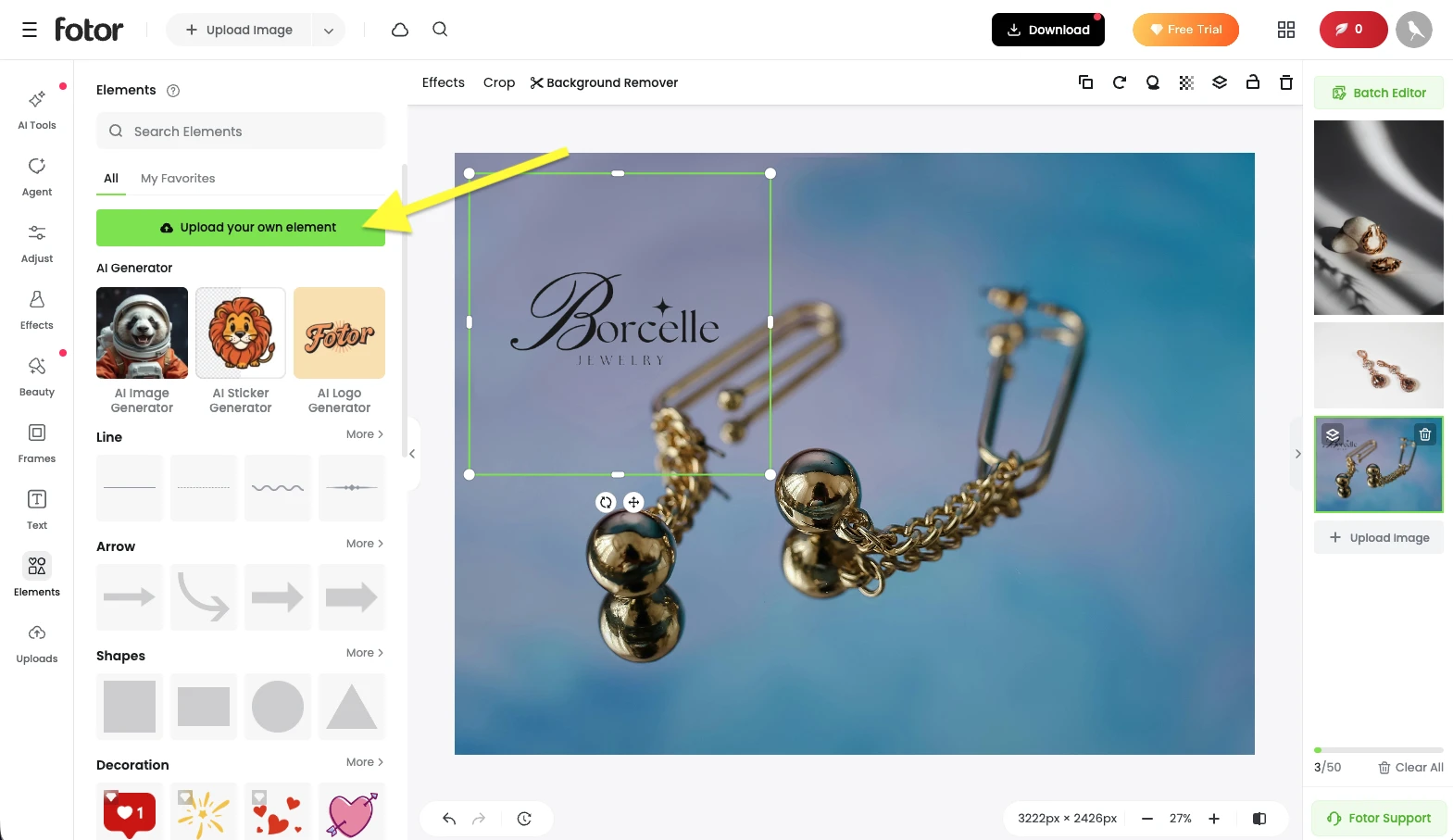
It’s best to use a high-quality, pre-made logo with a transparent background as it would be easy to place it over a photo.
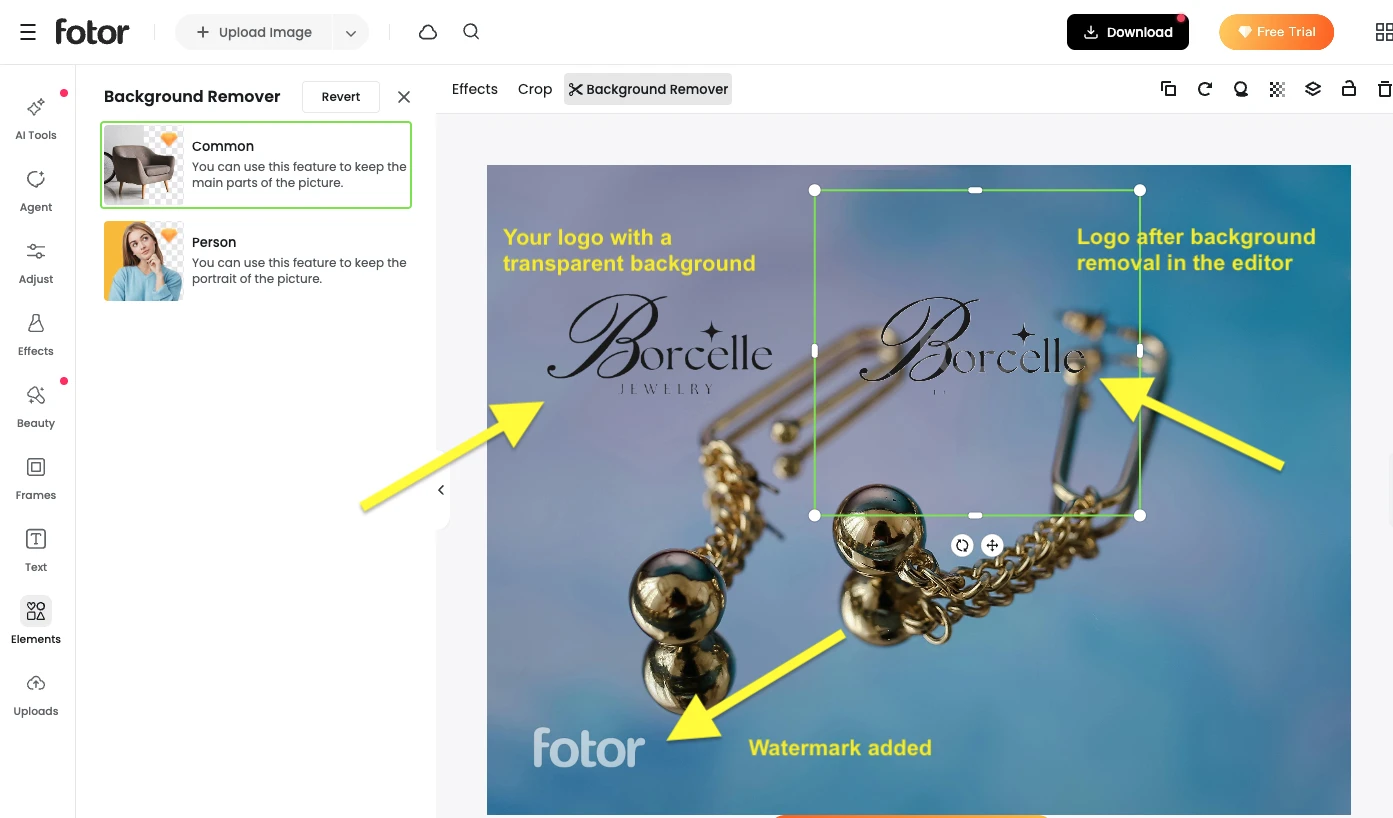
Working with a logo that has an opaque background might complicate things a bit. Fotor does allow you to remove the background right in the editor, but in our testing, the result was noticeably inferior in quality to the original logo with a transparent background.
There is one more limitation you should know about: background removal is a paid feature. If you use it in the free version, Fotor’s watermark will be automatically added to your image.
Available editing capabilities
Let’s assume you already have a high-quality logo with a transparent background and have successfully added it to a photo. What adjustments can you make within Fotor?
In the editor, you can do the following:
- Rotate the logo to the desired angle.
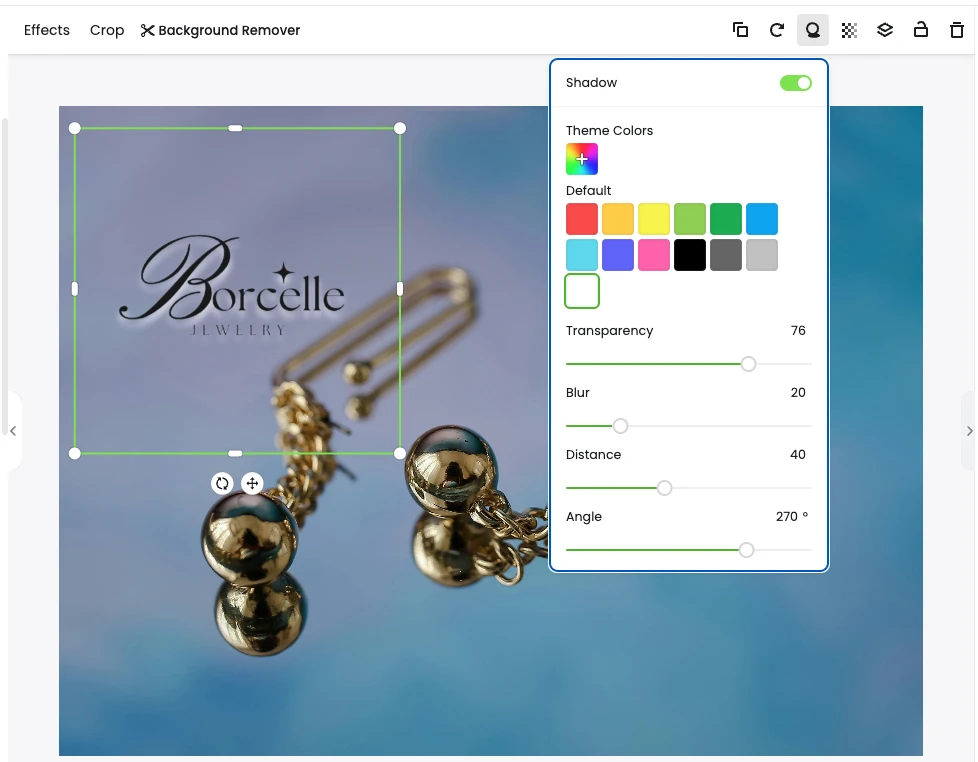
- Add a shadow and adjust its color, transparency, and angle.
- Change the opacity of the logo itself.
However, it is impossible to change the color of an uploaded logo. In some cases, this can be a significant limitation.
Say, your logo consists of black letters and a transparent background. It looks good on some images. But then there are certain photos where a white version of your logo would’ve looked much better. Since you cannot change the color of your logo in Fotor, you’ll need to make changes to the actual logo file and do so in advance using a different editor.
Is it possible to add a logo to several photos at once?
Batch processing in Fotor comes with a few caveats.
The app does allow you to upload up to 50 photos at once. It also claims to offer batch editing features. But our testing showed that it was impossible to add a single logo to all the images at the same time.
Each photo had to be edited individually. Moreover, whenever we switched between images, the app discarded all the changes we’d made, and the added logo vanished.
We managed to find a viable solution, though. You have to save each photo immediately after adding the logo. And only then move on to the next one.
On top of all that, there’s another inconvenience – you cannot save logo settings as a template for reuse. This feature could’ve made working with a large number of photos much easier.
Is it possible to create a logo from scratch?
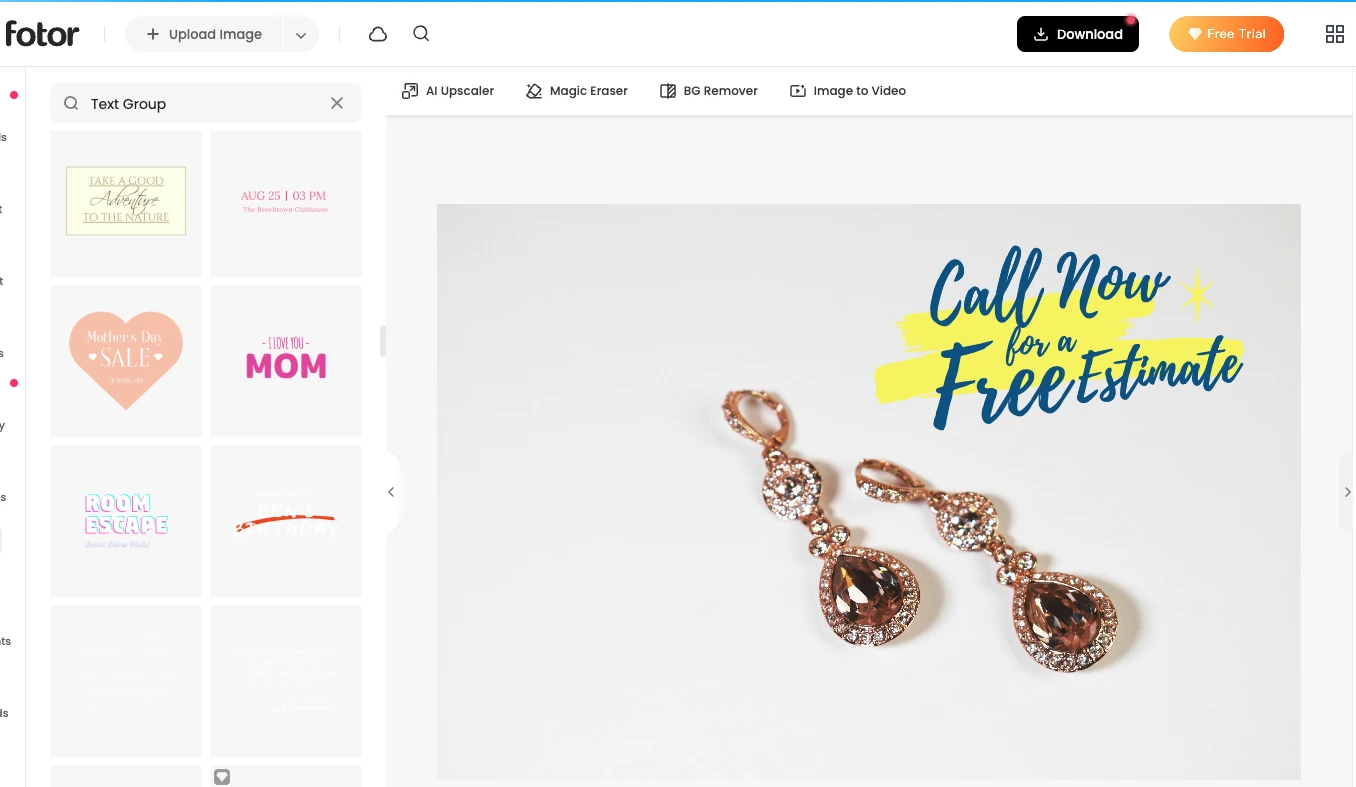
What if you don’t have a logo yet? Fortunately, Fotor offers a collection of text elements and pre-made lettering that you can use to create it from scratch.
But there’s a catch. The majority of these elements are intended for designing promotional materials, posters, and social media posts. In other words, they are supposed to convey a specific message, and because of that, they aren’t always suitable for creating a clean, professional-looking brand logo.
Nevertheless, you can create a logo from scratch in Fotor if you need a simple text-based one and are willing to experiment a bit with the design.
User reviews and reputation of Fotor
Fotor is a popular photo editor, so discussions about its features and user experience can be found in various places, including Reddit.
At the time of writing this review, Fotor’s rating on Trustpilot is 3.5 out of 5, based on 1,593 reviews.
Naturally, this rating can serve as an additional point of reference. But please keep in mind that, to choose the best tool, you should mainly consider the features and limitations that are relevant to your task at hand.
2. Visual Watermark
Visual Watermark is an app that’s designed specifically for adding watermarks to photos. It’s well-suited for the task at hand since a logo can be used as a watermark.
One of Visual Watermark’s peculiarities is that it comes in two versions: an online editor that runs directly in your browser, and a desktop app that must be installed on your computer. Each version has its own advantages and limitations, which we will explore below.
How to add a logo to a photo in Visual Watermark
To add a logo using the online editor, select the Add Logo to Photo tool on the website, upload your photo, then click Add Logo and choose your logo file.
Unlike Fotor, Visual Watermark allows you to upload logos in various formats, including SVG.
Here’s another useful feature of this app: when you upload a logo, it is automatically cropped to the edges of its content. That’s right, in the blink of an eye, all the unnecessary empty space is removed. This allows you to easily adjust your logo’s size, then position it exactly where you want on a photo.
If your logo has an opaque background, you can remove it within the editor. However, this feature is only available in the paid version. Therefore, if you want to add a logo to a photo for free, you should prepare a file with a transparent background beforehand using a third-party editor.
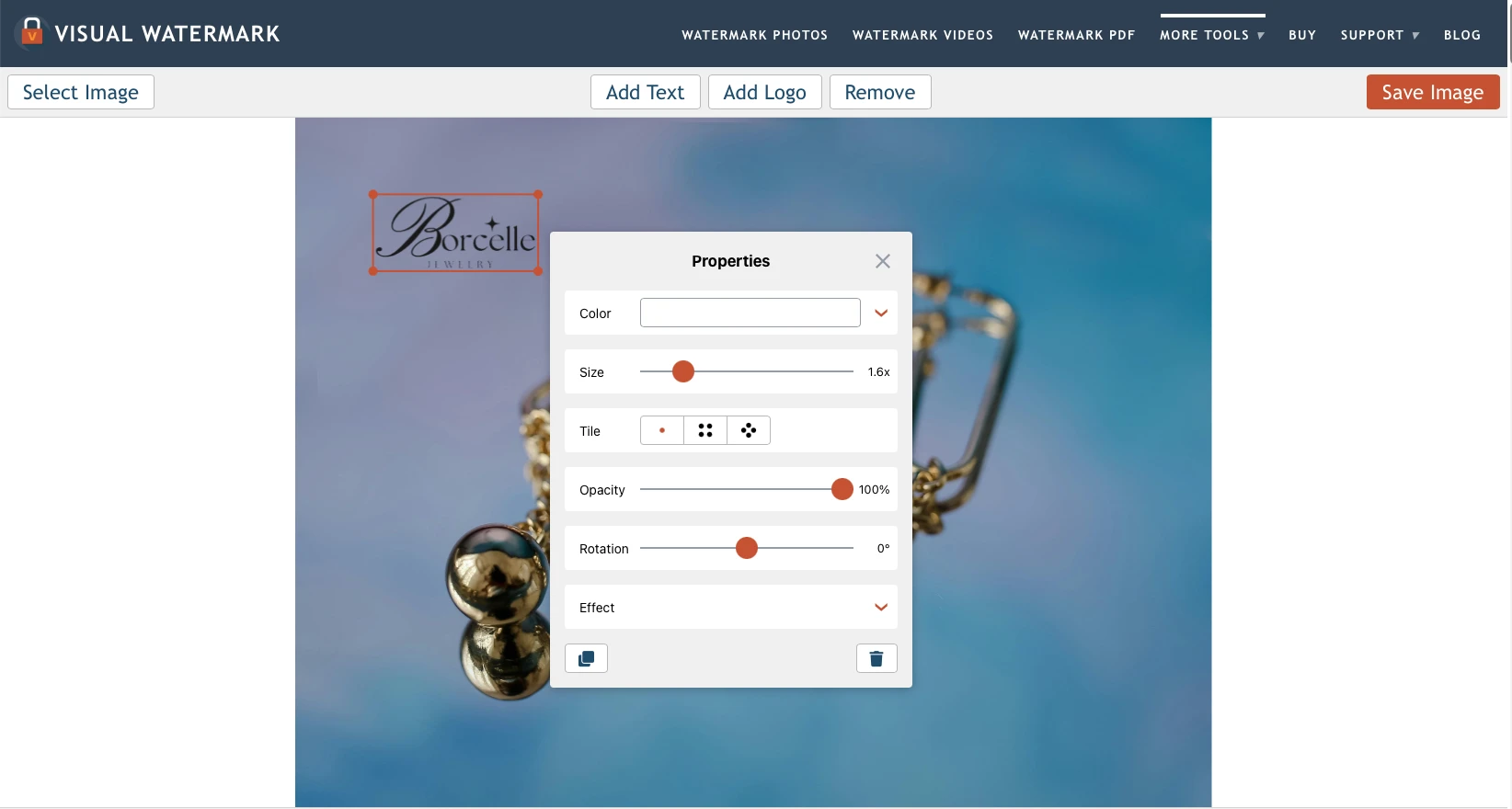
Available editing capabilities
Visual Watermark gives you a lot of freedom and flexibility when it comes to making changes to a logo. Here, you can both place your logo on a photo and adjust its appearance to suit the specific image.
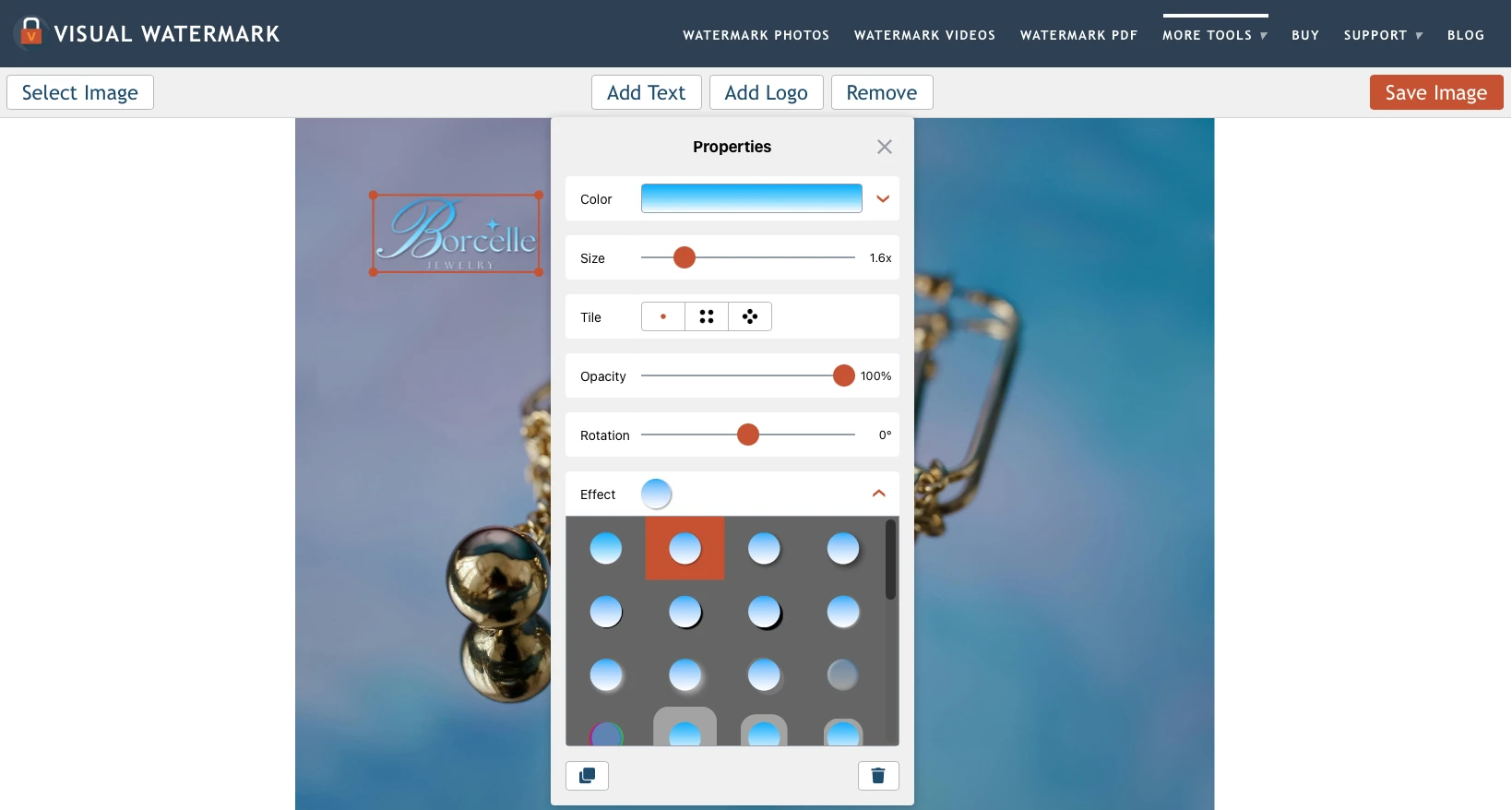
Here’s what you can do in Visual Watermark:
- Change color: You can choose a more contrasting shade to make the logo stand out against the background or opt for an entirely different color to make it blend more cohesively with the color palette of the photo.
- Add effects: you can separate your logo from the background by adding a shadow or, if you want to get a bit more creative, you can give it a 3D look.
- Adjust transparency: this feature allows you to make the logo less obtrusive while maintaining its legibility.
- Rotate your logo: you can easily change the angle of your logo.
- Tile your logo: you can fill an image with repeating logos, arranging them vertically or diagonally.
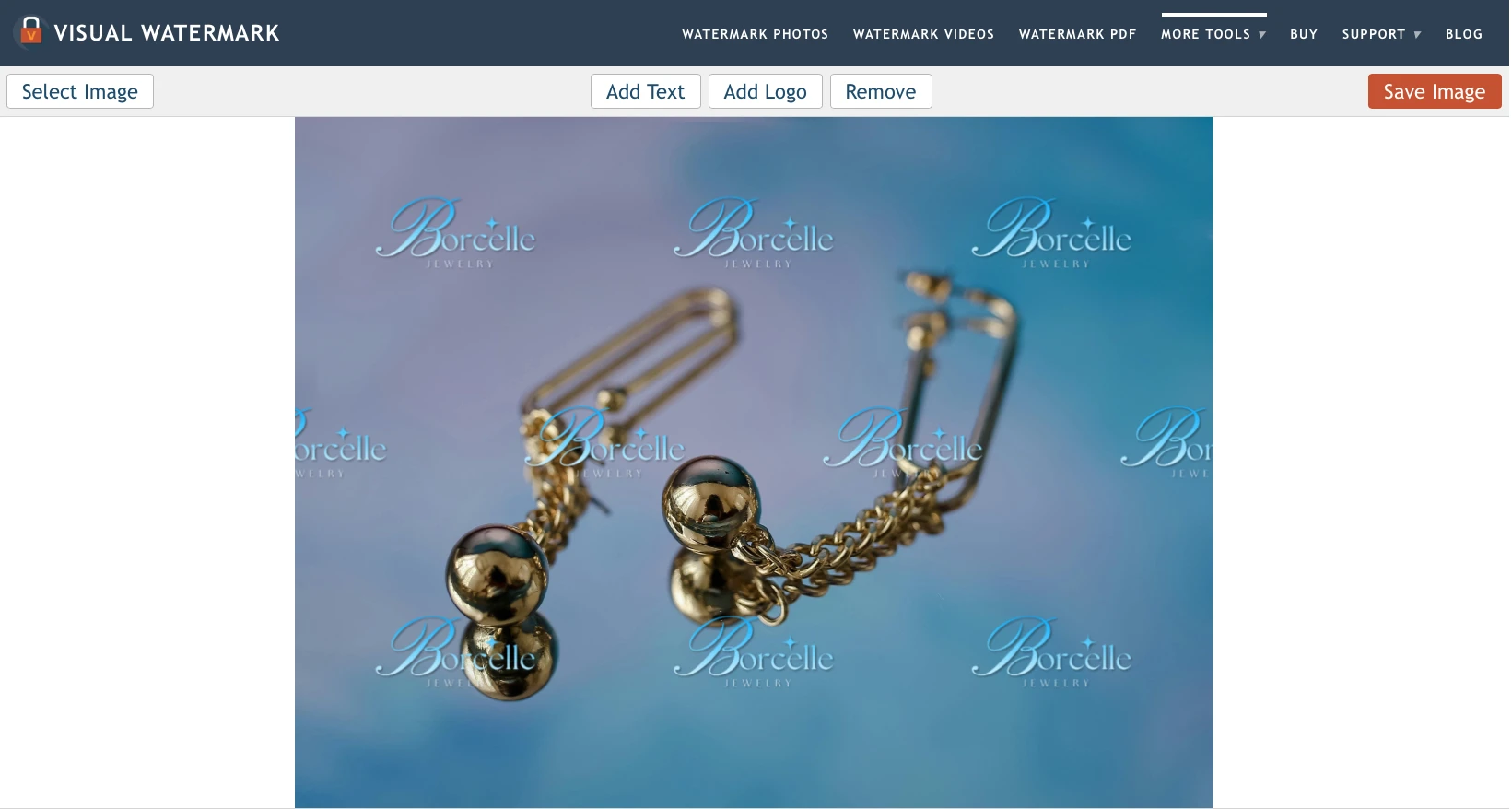
Once you’re done with editing, click Save Image to save the photo with the logo.
An important advantage of Visual Watermark is that your logo settings are not reset after you save an image. You can continue editing and save another version of the same photo – for instance, with a different color or placement of your logo.
You can also click Select Image to upload another photo. The logo you’ve created and its settings will be preserved, so you won’t have to start from scratch every time.
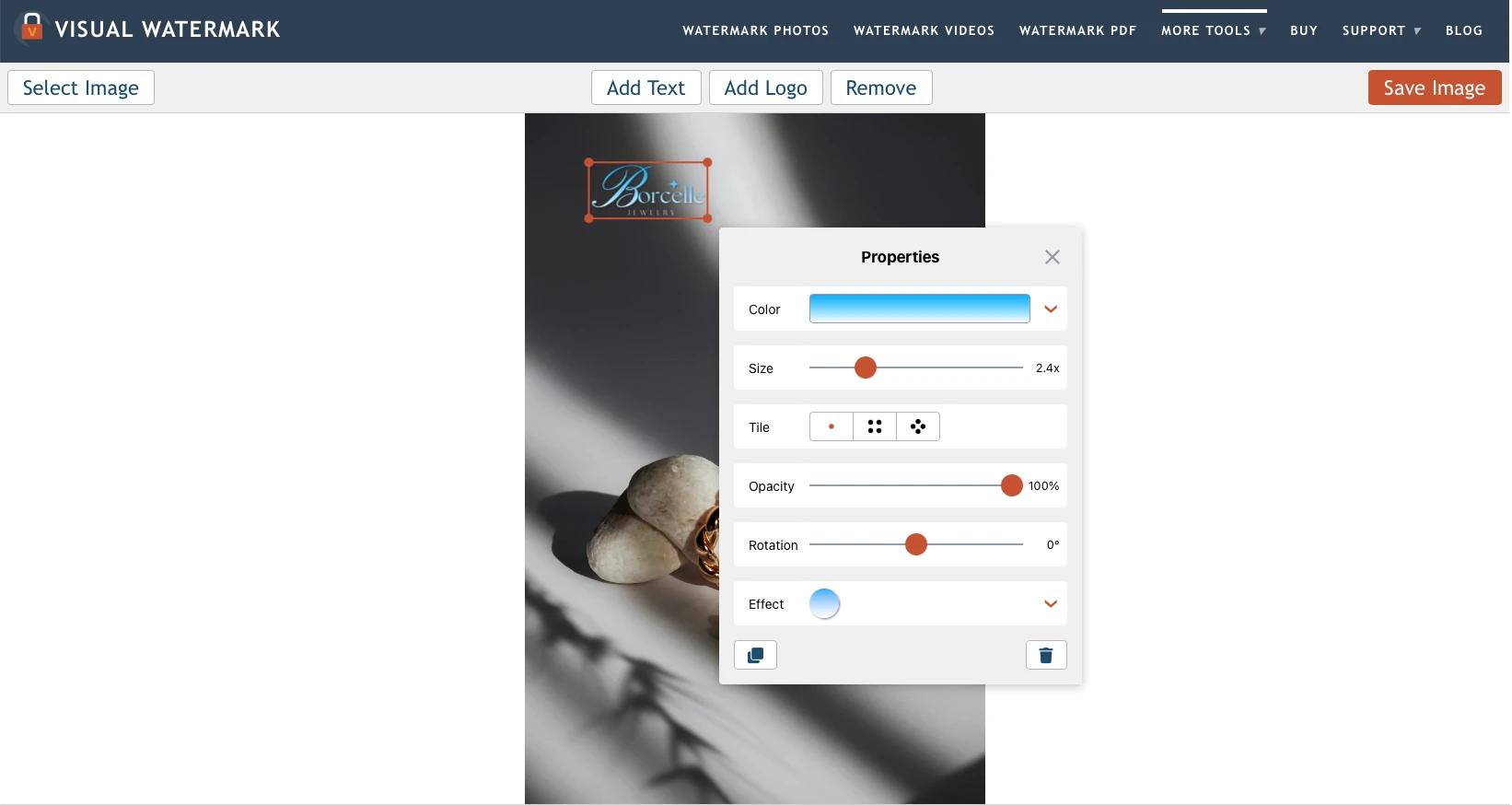
The free version allows you to process up to 5 photos per day. Hence, you can apply the same logo to 5 photos for free, one by one.
However, there’s a caveat you should be aware of. If you exit the editor or delete the watermark you’ve created, you’ll have to pay to reuse the saved template.
Is it possible to add a logo to several photos at once?
The free online version of Visual Watermark allows you to process only one photo at a time. That said, since the logo settings are saved within the current session, it’s much easier to process multiple images one after another than in Fotor.
If, however, you need to add the same logo to dozens or hundreds of photos at once, you will need the paid version.
Batch processing capabilities vary depending on the chosen version of the app:
- Online version allows you to upload up to 2,000 photos at once.
- Desktop version can process up to 50,000 photos in one go.
Thus, Visual Watermark is suitable for adding a logo to individual images as well as for working with big batches of photos. But for the latter, you will need a paid subscription or lifetime license.
Is it possible to create a logo from scratch?
It is, in fact, possible to create your own logo in Visual Watermark. But the free online editor offers a rather limited selection of tools for this.
You’ll have access to a collection of ready-made icons and 12 recommended fonts. This may be enough for creating a simple logo that consists of some text and a graphic element.
Luckily, the editor doesn’t limit the number of elements you can add to a photo. This allows you to combine icons and text as well as experiment with various design settings to create the perfect logo.
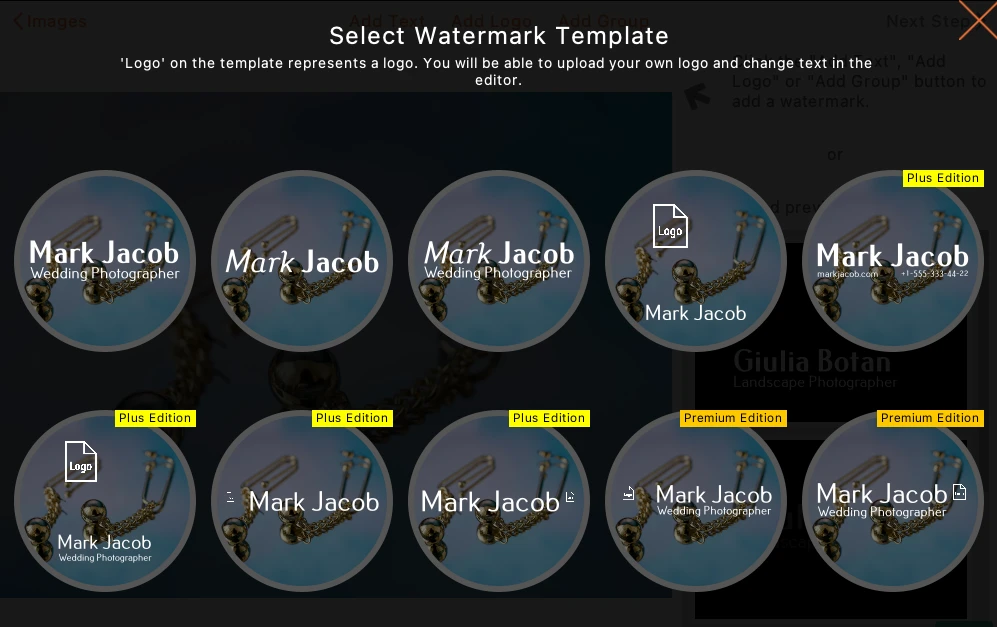
The desktop version offers more features. In addition to tools for working with text and graphics, it includes 10 ready-made logo templates that can be used as a foundation for your own design.
User reviews and reputation of Visual Watermark
At the time of writing this review, Visual Watermark’s rating on Trustpilot is 4.9 out of 5 based on 679 reviews.
A high user rating like this should be taken into consideration, of course. However, as with any other tool, you need to look beyond the overall score. Remember that the most important thing is whether the available features are suitable for your needs.
3. Canva
Canva is one of the most well-known online editors, frequently appearing on lists of recommended tools for working with images. But how convenient is it for adding a logo to a photo?
To test this, we decided to use the Online Watermark Maker tool available on the Canva website. To launch the editor, simply click Watermark a Photo.
How to add a logo to a photo in Canva
The very first thing you need to keep in mind is the canvas size. If you open the editor from the Online Watermark Maker page, you might see a white canvas with pixel dimensions and aspect ratio that don’t match those of your photo. As a result, you will need to make further adjustments or crop the image.
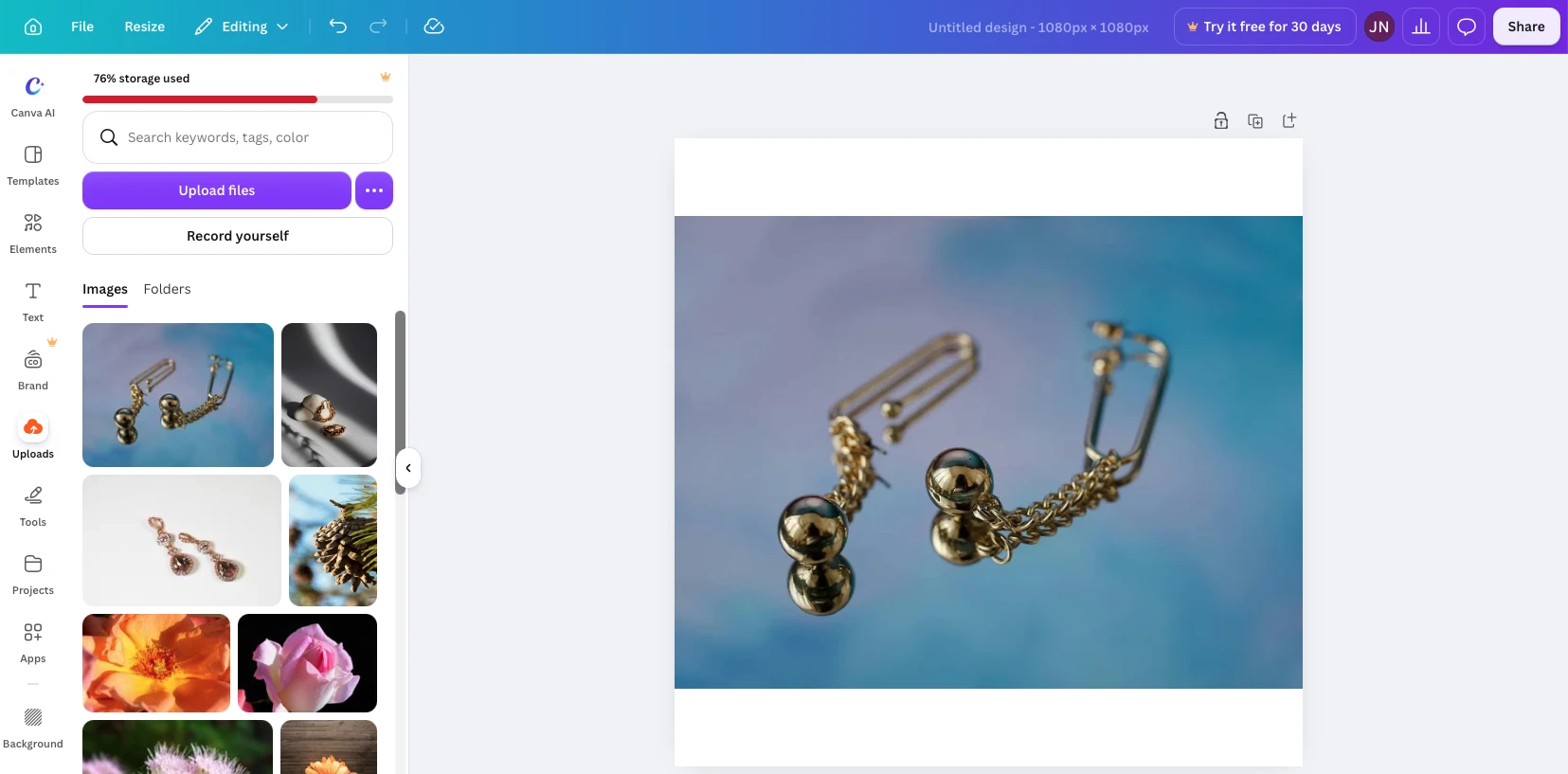
To avoid this, you need to start from the Canva home page. Click Create a design, select Custom size, and enter the pixel dimensions of your photo. Once you do this, the aspect ratio and pixel dimensions of the canvas will perfectly match your original image.
Next, go to the Uploads section in the editor’s left-hand panel and upload the photo along with the logo file.
Canva supports various image formats, including SVG, though the terms for their use may depend on your subscription plan.
It’s worth mentioning that during our testing, we experienced some difficulties with placing a pre-made logo with a transparent background. The editor displayed it with a white background and prompted us to use a paid feature to remove it.
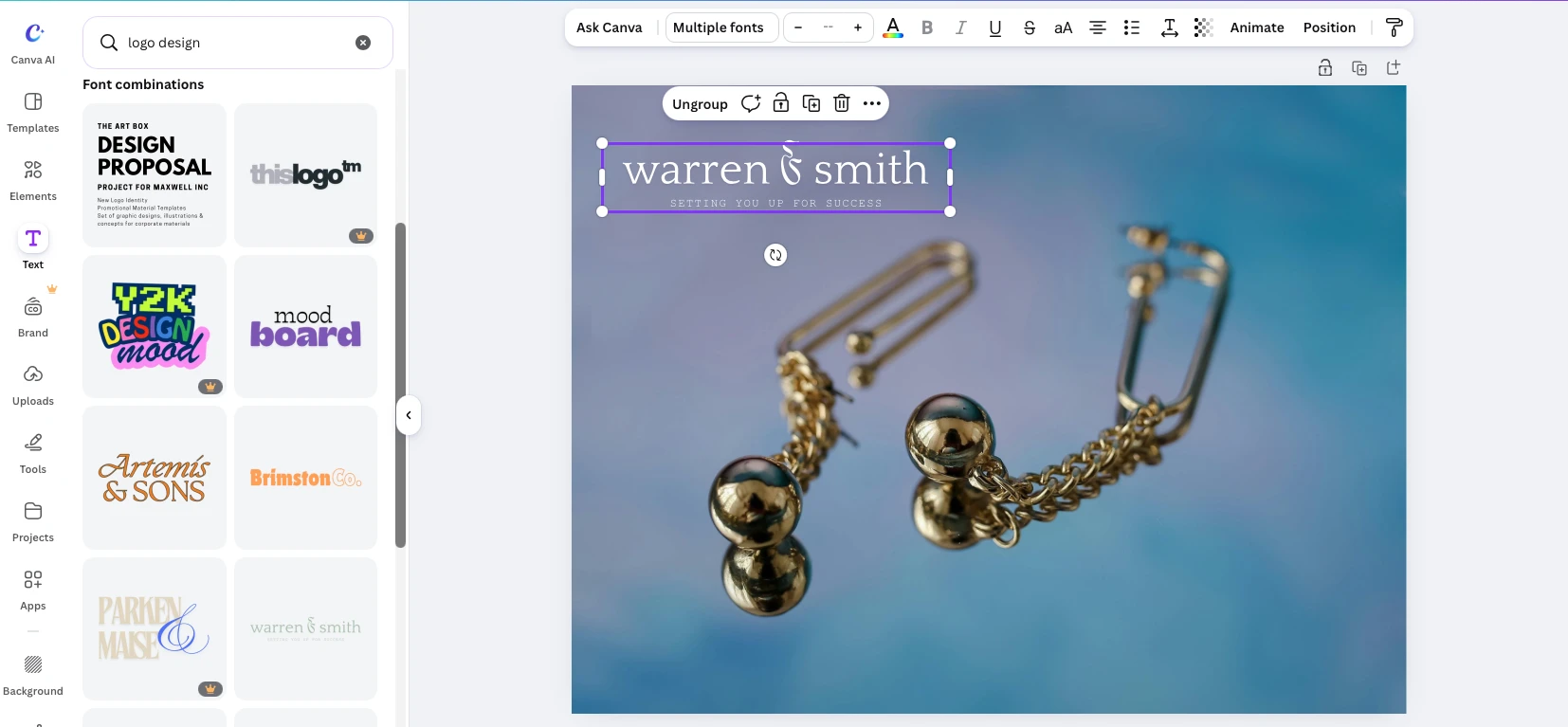
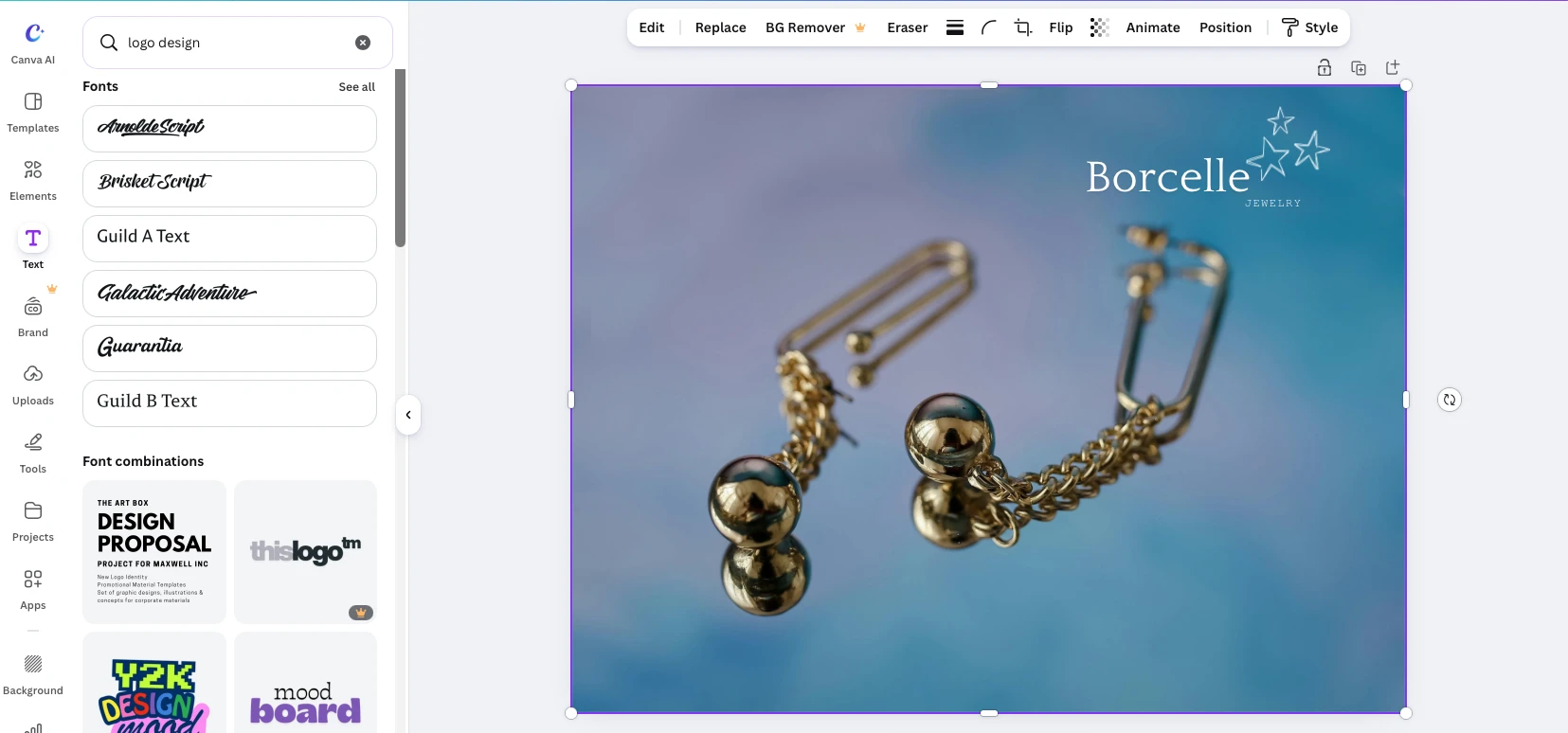
The most accessible way to add a logo for free turned out to be creating it within the editor, using Canva’s free elements and templates.
Available editing capabilities
If you create a logo in Canva using text and graphic elements, its design can be adapted to suit a specific photo.
For example, you can:
- Change the color of text and supported graphic elements.
- Adjust the logo’s transparency to make it less obtrusive.
- Adjust the size and position of the logo on your image.
The set of available settings depends on which elements you are using and which features are included in your subscription plan.
Is it possible to add a logo to several photos at once?
In Canva, you can add the same logo to multiple photos one by one without having to recreate it each time. However, this does require a bit of manual work.
There’s a relatively easy method, but you can use it only if all the photos in the batch have the same pixel dimensions and aspect ratio.
Once you have finished designing and positioning a logo on the first photo, click Duplicate Page to create a copy of the page, including the logo. Then go to the new page, delete the original photo, while keeping the logo in place, and add a different image as the background.
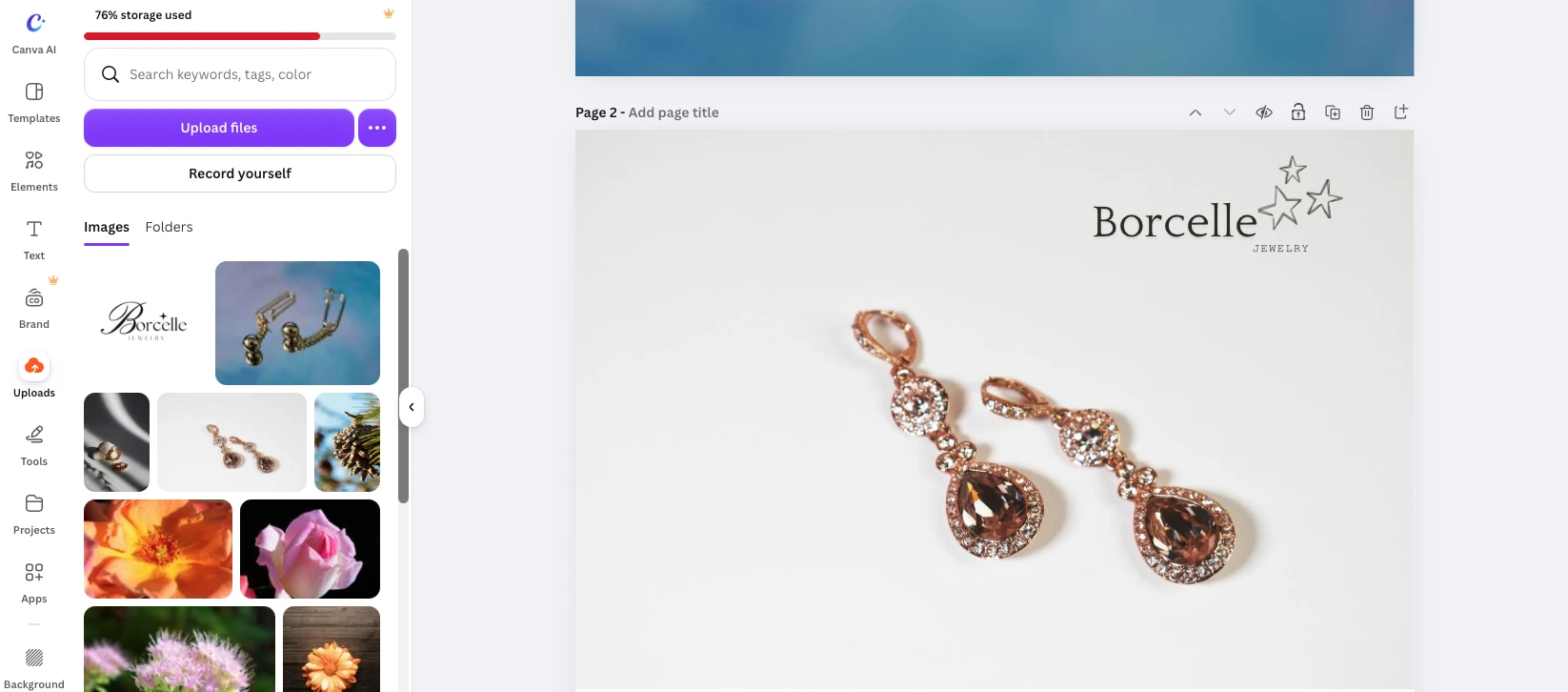
If necessary, you can adjust the color or transparency of the logo to make it look better on the new photo.
Repeat these steps for the remaining images. Once finished, you can download all the pages as individual files, bundled together in a ZIP archive.
As you can see, this method is rather quick and easy. But naturally, it’s not exactly an automatic batch processing since the images still have to be replaced manually.
One of Canva’s advantages is the ability to save a project and return to it later. You can reuse a logo you’ve created for new photos that have the same dimensions and aspect ratio.
If the aspect ratio or dimensions of new images differ, you can create a new project with a different canvas size and then copy the logo from the previous project into it.
Is it possible to create a logo from scratch?
Canva offers tools for creating logos within the editor. You can use ready-made templates or combine different fonts, graphic elements, and text to design your own logo.
This is especially convenient if you don’t yet have a finished logo and would like to create something simple to place on your photos.
However, when using the free version, you should pay attention to the elements you select: some templates, graphics, and additional tools are available only to Canva Pro users.
User reviews and reputation of Canva
Canva is a widely known graphic design platform used by millions of people around the world. Its features are actively discussed on social media, YouTube, and specialized forums.
If you are already familiar with Canva’s interface – and especially if you have a Pro subscription – adding a logo to a photo won’t pose much of a challenge to you.
However, for a user who simply wants to add a pre-made logo to several photos for free, Canva might not be the best choice. You have to deal with canvas settings, manually swap out images, and figure out where specific features are located. All of these can complicate a task that, at first glance, seems straightforward.
4. Imageonline.co
When we searched for add logo to photo on Google, Imageonline.co appeared among top results. So, we decided to include it in our review.
It’s worth mentioning right away that in terms of its interface, this tool differs significantly from the apps discussed earlier. The website is cluttered with ads and banners, making it difficult to figure out where the editor itself is located or how to start adding a logo to a photo.
How to add a logo to a photo in Imageonline.co
The entire process boils down to three main steps:
- Click Upload Image to upload your photo.
- Click Add Logo Image to upload your logo file.
Click Download Image to download your finished image.
Once the logo has been uploaded, you can adjust its size, position, and level of opacity.
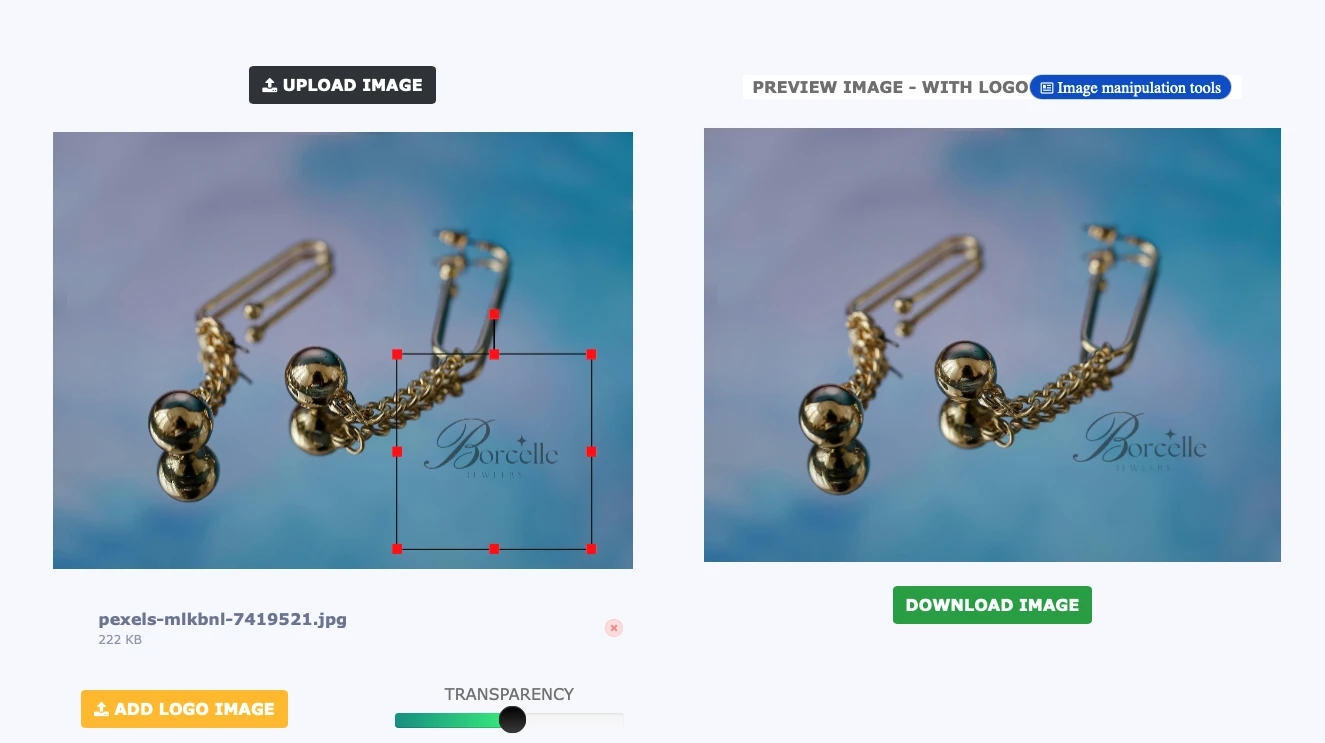
This may come as a surprise, but using this app is a bit of a hassle – even though its set of features is pretty basic! For instance, if you accidentally upload the wrong logo file, there is no way to delete or replace it. During our testing, the only solution was to completely reload the page and start over.
Also, it’s important to note that Imageonline.co does not support the uploading of logos in SVG format.
Available editing capabilities
Editing capabilities in Imageonline.co are virtually non-existent. Apart from adjusting the size, position, and transparency of a logo, the tool offers no additional settings.
You won’t be able to remove an opaque background from a logo, change its color, or add any effects, such as a shadow.
Therefore, to work with Imageonline.co, you need to make sure that your logo has the desired design and is in the supported format before you upload it into the app.
On top of that, there is no option to save logo settings as a template for reuse.
Is it possible to add a logo to several photos at once?
There were some issues with batch processing on Imageonline.co.
Although the interface allows you to select and upload multiple photos at once, during our testing, the logo was added only to the last image in the batch. The rest of the photos remained unchanged.
Thus, we were unable to use Imageonline.co to add a logo to multiple photos at once.
Is it possible to create a logo from scratch?
Imageonline.co doesn’t offer any tools for creating a logo. You can only upload a pre-made file and place it onto a photo.
User reviews and reputation of Imageonline.co
We couldn’t find a sufficient number of independent user reviews and ratings to form an objective assessment of Imageonline.co’s reputation.
Therefore, we relied primarily on the results of our own testing when evaluating this tool.
5. Watermarkly
Watermarkly is a suite of web tools designed for specific image-editing tasks. Unlike Fotor, which combines a wide range of features into a single editor, Watermarkly offers individual tools with a simple, intuitive interface.
Thanks to this, using Watermarkly is easy and convenient for those who have no prior experience in image editing. You won’t have to navigate through dozens of features and settings to find what you need. As a result, you can add a logo to a photo in just a few minutes.
How to add a logo to a photo in Watermarkly
To get started, select the Add Text to Photo tool on the Watermarkly website. Despite its name, it allows you to add both text and pre-made logos to an image.
Upload a photo to the editor, then click Add Logo and select your logo file.
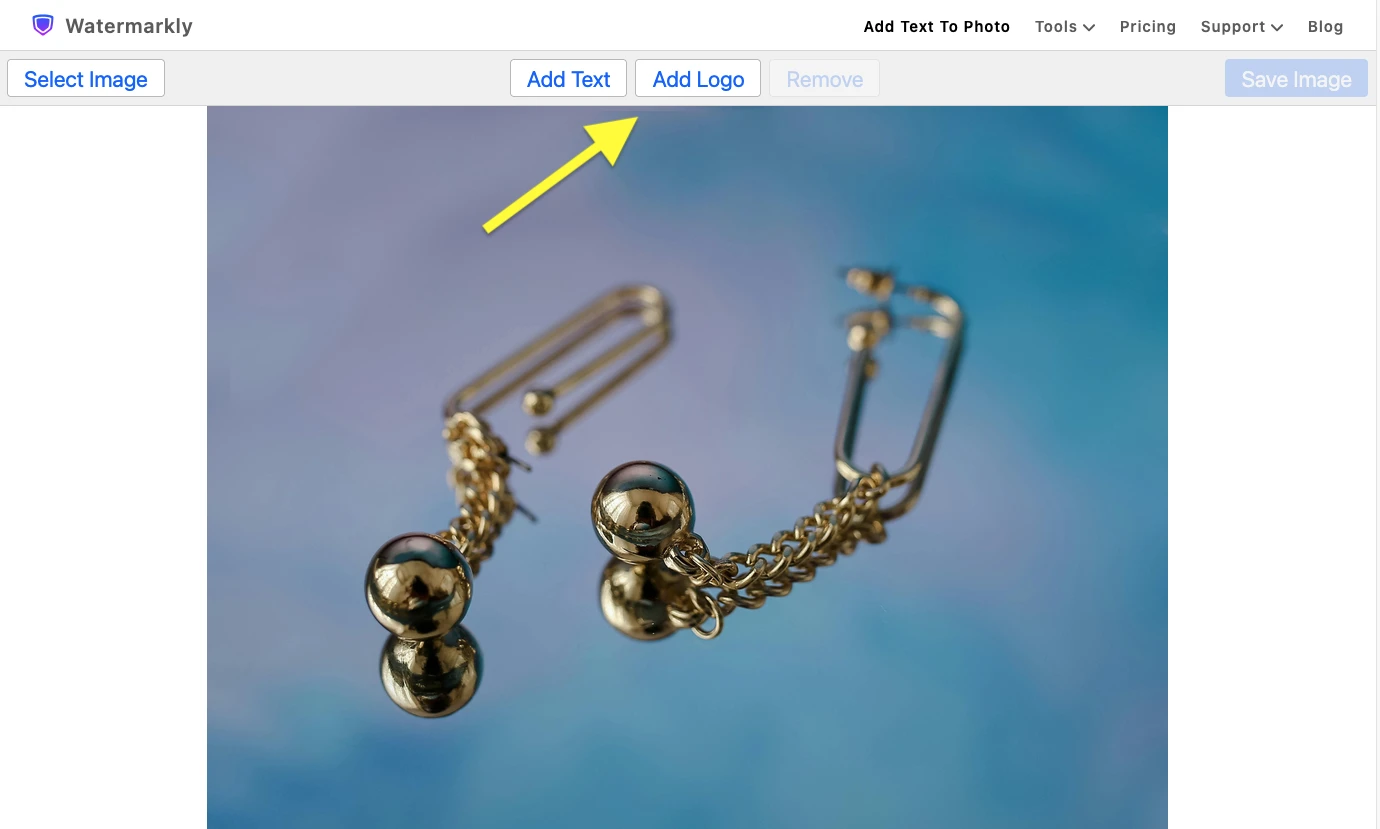
Watermarkly allows you to upload logos in various formats. However, if your logo has an opaque background, you can remove it within the editor only if you have the paid version.
So, if you want to use the app for free, you should prepare a logo with a transparent background in advance.
Available editing capabilities
Once your logo is uploaded, you can adjust its appearance so it fits more naturally into an image.
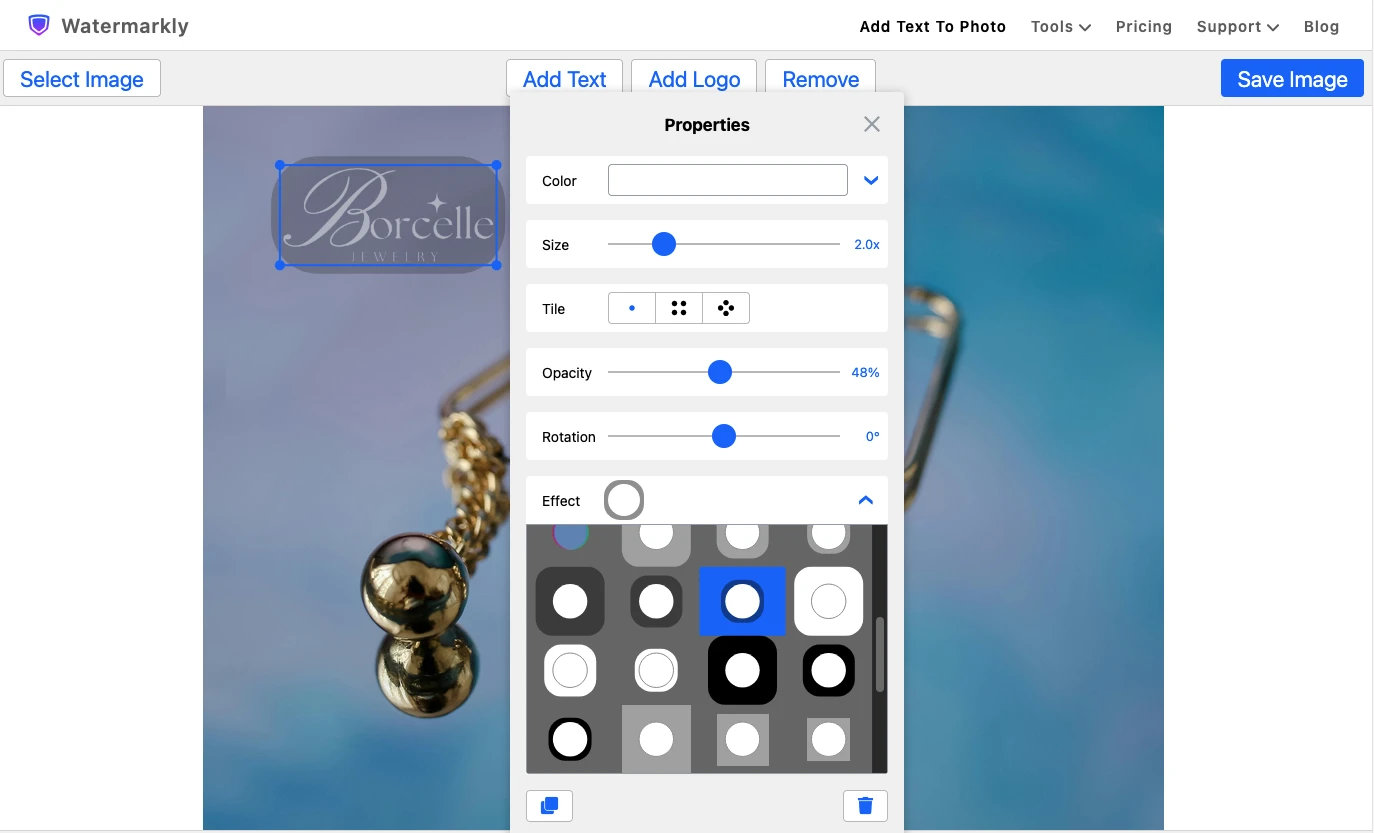
Watermarkly offers the following features:
- Color change: you can select a shade from the palette or specify an exact HEX value.
- Size adjustment: you can make your logo bigger or smaller by dragging its borders or by using the slider in the editor panel.
- Opacity and angle adjustment: you can rotate your logo and make it unobtrusive.
- Addition of effects: you can make use of such effects as embossing, an additional background, or a shadow.
Once you’ve finished editing, click Save Image to save the final photo.
Is it possible to add a logo to several photos at once?
Batch processing isn’t available in the free version of Watermarkly. You can only add a logo to multiple photos by uploading them one after another.
The paid version is required for processing a large number of photos simultaneously.
In fact, if you upgrade to premium, you’ll get access to the following features:
- Removing the opaque background of a logo.
- Saving logo templates for reuse.
- Adding the same logo to hundreds of photos at once.
Therefore, the free version can be enough for processing individual images, whereas the paid version is better suited for processing big batches of photos on a regular basis.
Is it possible to create a logo from scratch?
In Watermarkly, you can combine text elements with different fonts and icons from the built-in gallery to create a simple logo.
However, the design options here are quite limited. If you need a complex logo with custom graphics, you’ll have to make it beforehand with the help of a specialized editor.
Overall, Watermarkly is most convenient for adding a pre-made logo to a photo. You can quickly place it, adjust its color, size, and opacity if needed, and then save the image – all without any unnecessary extra steps.
User reviews and reputation of Watermarkly
Watermarkly has been on the market for many years. One of the company’s best-known tools is for adding watermarks to photos. The user experience is discussed on platforms like Reddit, and you can also find video reviews and tutorials on YouTube.
At the time of writing this review, Watermarkly has a rating of 4.9 out of 5 on Trustpilot, based on 2,866 reviews.
Of course, a high user rating can be taken into account, but it is also worth considering that the free version does have some limitations.
6. ILoveIMG
Similar to Watermarkly, ILoveIMG offers a suite of individual online tools for working with images. To add a logo to a photo, you need to use the Watermark Image tool.
This editor is designed specifically for adding text- or image-based watermarks, so its interface is pretty straightforward. You won’t have to hunt for the features you need among a multitude of other tools.
However, the website is filled with ads that can be distracting and make navigation slightly more difficult.
How to add a logo to a photo in ILoveIMG
Click Select Images and upload a photo. Then, in the editor panel on the right, select Add Image and add your logo file.
The size of the uploaded logo is automatically adjusted to match the dimensions of the photo.
However, there are two significant limitations to keep in mind. First, ILoveIMG doesn’t support SVG, so you won’t be able to upload logos in that format. Second, the editor doesn’t offer a feature for removing an opaque background – in neither the free nor the paid version.
So, to get the best results in ILoveIMG, you’ll probably need to prepare a logo with a transparent background in advance.
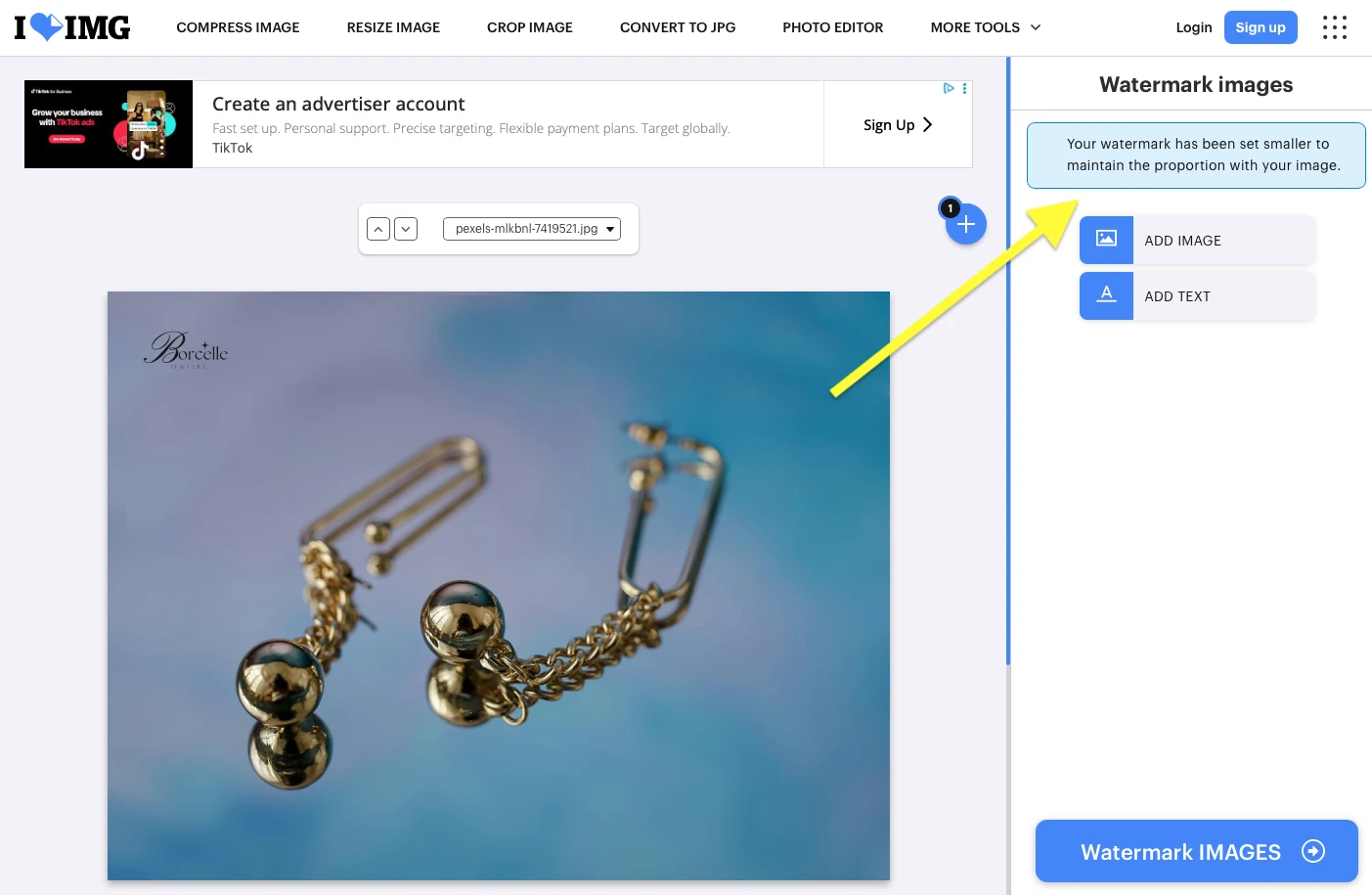
Available editing capabilities
You won’t be able to do much editing in ILoveIMG. Once your logo is uploaded, you can adjust its size, opacity, and position.
However, making the logo bigger can degrade its quality. If you try to enlarge it too much, the editor will display a warning message:
«Your watermark might look pixelated because it will be stamped bigger than its real size».
In ILoveIMG, it’s not possible to change the color of your logo, remove its background, or add any effects, e.g., a shadow.
Generally speaking, this app is very similar to Imageonline.co: its primary purpose is to place a finished logo onto a photo rather than to provide tools for full-fledged editing.
Is it possible to add a logo to several photos at once?
Yes, and this is one of the main advantages of ILoveIMG.
For batch processing, simply select and upload multiple photos. All the images will appear in the editor one after another. If needed, you can add more files by clicking the + button.
After uploading, the logo is automatically placed on all photos using the same settings for size, position, and transparency.
However, there is a certain limitation: you cannot customize the color of your logo individually on each photo. For instance, if the logo is clearly visible in some images but blends into the background in others, you won’t be able to change its color within the editor.
To process and download all the photos, click Watermark Images.
It’s also worth mentioning that ILoveIMG doesn’t allow you to save logo settings as templates for future use. Furthermore, once you download your photos, the settings are reset, meaning you will have to start from scratch the next time you open the editor.
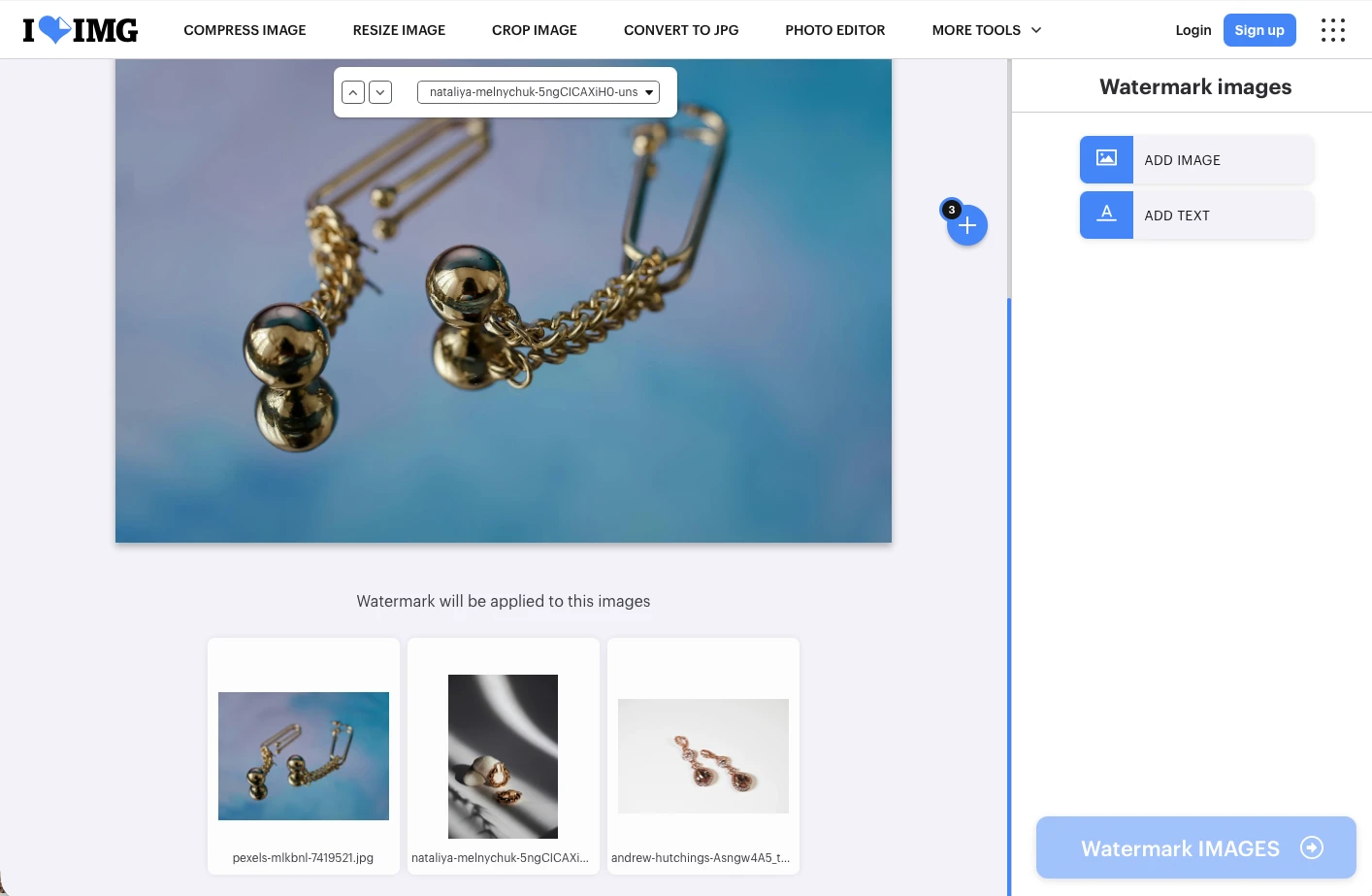
Is it possible to create a logo from scratch?
There’s no full-featured tool for creating logos in ILoveIMG. That said, you can add some text and use it as a simple brand watermark.
Nine fonts and basic text formatting settings are available for this.
If you need a simple text-based logo, these features should be more than enough. However, you will definitely need to use a different editor to create a more complex design that includes graphic elements.
User reviews and reputation of ILoveIMG
On YouTube, you can find tutorials on how to use ILoveIMG, while Reddit offers user discussions and comments.
At the time of writing this review, ILoveIMG has a rating of 4.9 out of 5 on Trustpilot, based on 1,525 reviews.
Despite its limited logo-editing capabilities, ILoveIMG can be a convenient solution if you need to quickly add a pre-made watermark to multiple photos at once.
7. Watermark.ws
As the name suggests, Watermark.ws is another online tool for creating and adding watermarks, including brand logos.
In terms of functionality, this editor is somewhat similar to Fotor. Aside from adding a watermark, you can crop a photo, resize it, apply filters, or add a frame. All these tools are available within a single editor, so there’s no need to switch between different apps.
To add a logo, you need to go to the Watermark tab.
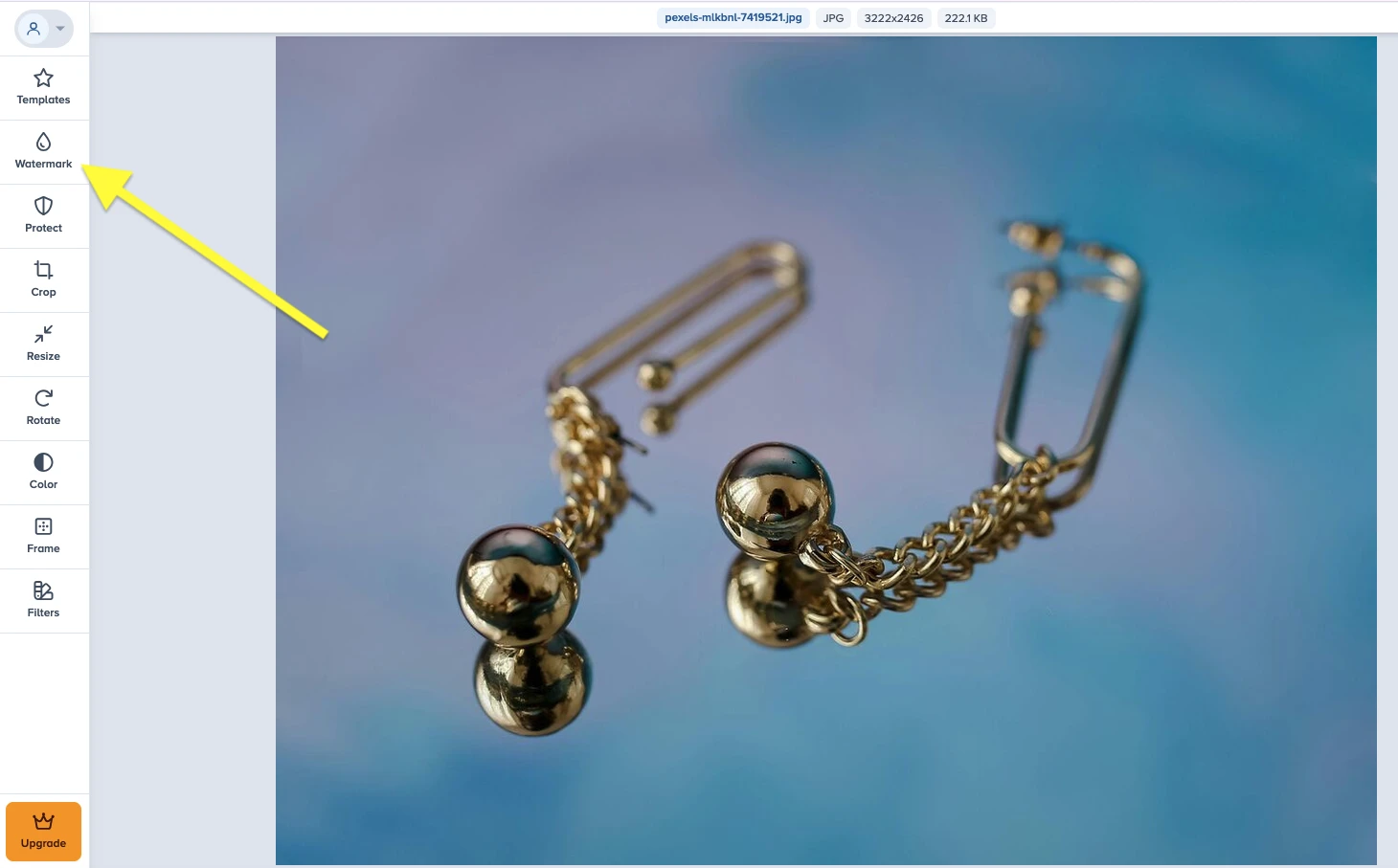
How to add a logo to a photo in Watermark.ws
Open the Watermark section, click Add Logo, and upload your logo file.
Watermark.ws supports JPG, PNG, SVG, and GIF formats. The maximum file size for uploads is 50 MB.
You can use the logo with either a transparent or an opaque background. However, to remove the background, you’ll need to purchase the paid version.
Luckily, there are no limits on the number of logos you can add to a single photo. This is useful if you need to add multiple brand elements or create a more complex composition.
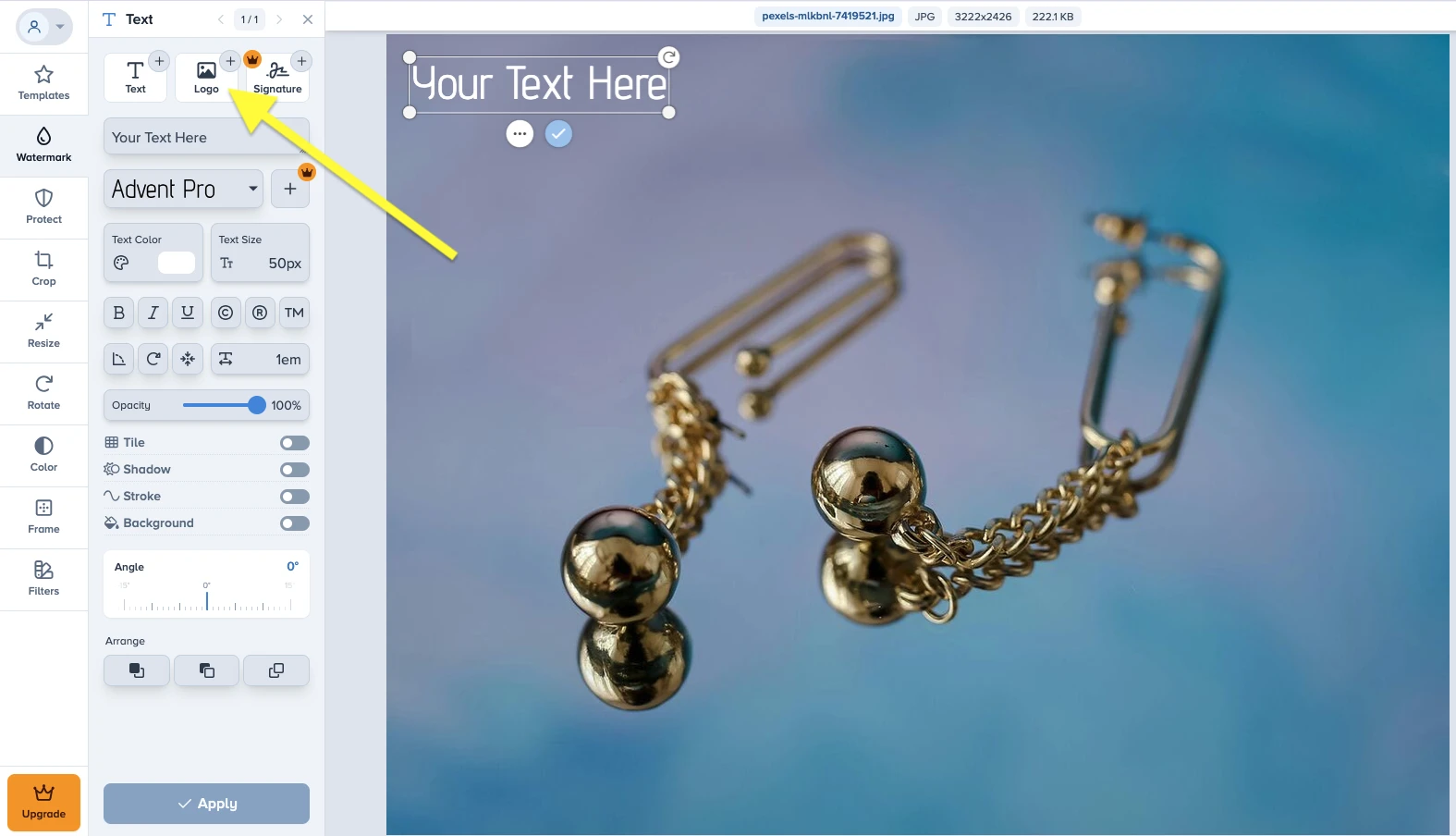
Available editing capabilities
Watermark.ws offers a fairly extensive set of tools for customizing your logo.
Here’s what you can do:
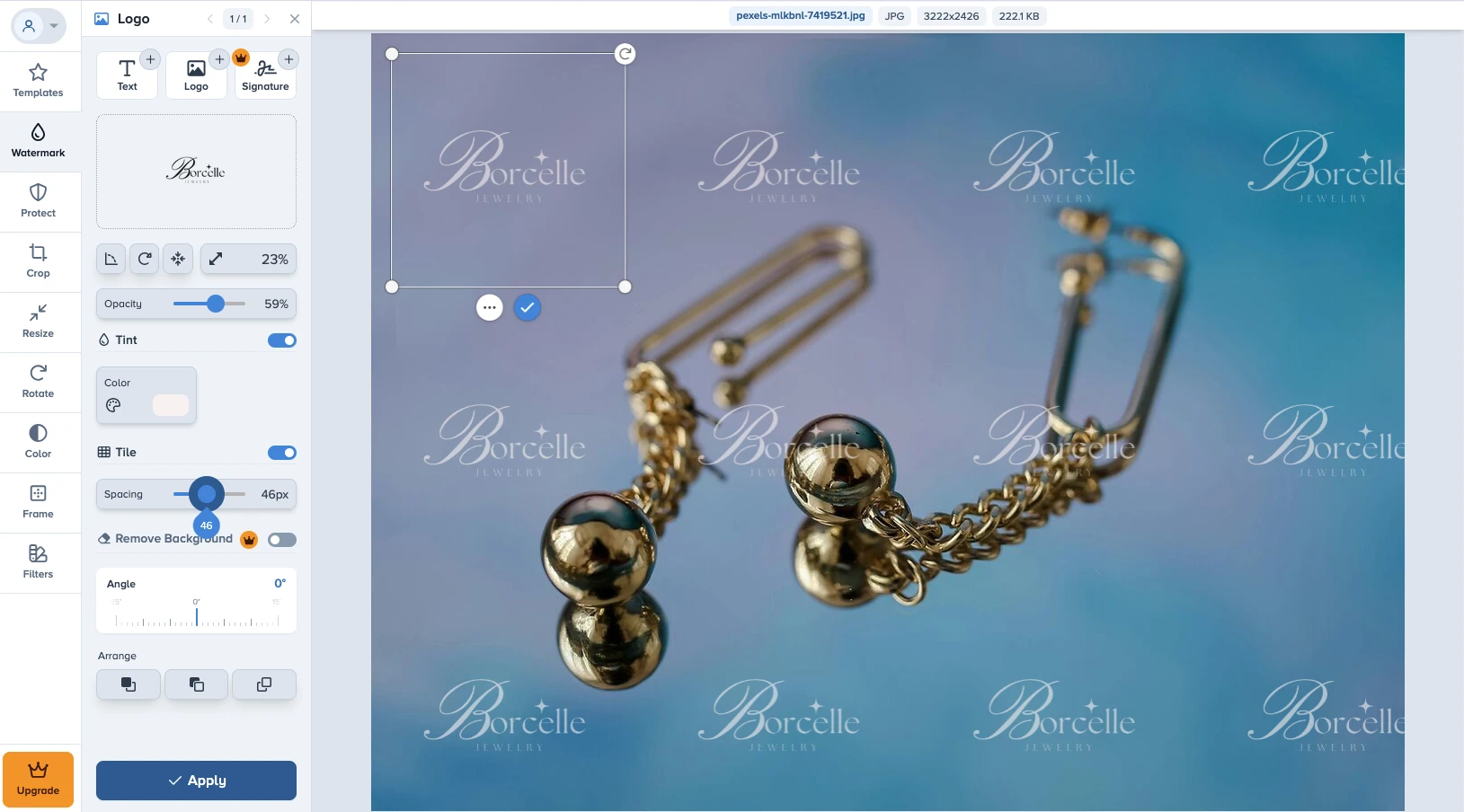
Adjust size, position, and angle: place the logo wherever you need, then rotate and resize it.
Change color: select a different shade from the palette or apply color inversion.
Tile your logo: fill a photo with repeating logos and adjust the spacing between them.
Adjust opacity: if you don’t want your logo to distract from the photo, make it less obtrusive.
Thus, in Watermark.ws, you can add a finished logo and then customize its appearance to suit a specific image.
Is it possible to add a logo to several photos at once?
Yes, Watermark.ws supports batch processing. And surprisingly, the whole process is pretty uncomplicated.
After uploading several images, the selected logo automatically appears on each of them. You can then switch between image previews and make individual adjustments if needed.
For instance, you can easily change the color of the logo if it blends into the background, or move it to a different part of the image – these changes won’t be applied to other images in the batch.
However, there is a significant limitation: in the free version, you can download only one photo from the entire uploaded batch.
To save all processed images simultaneously, you will need to upgrade to the paid plan.
So, yes, even though batch processing is available and it’s convenient, you won’t be able to make full use of this feature for free.
Watermark.ws also allows you to save logo settings as a template for reuse. However, access to saved templates is also available only in the paid version.
Is it possible to create a logo from scratch?
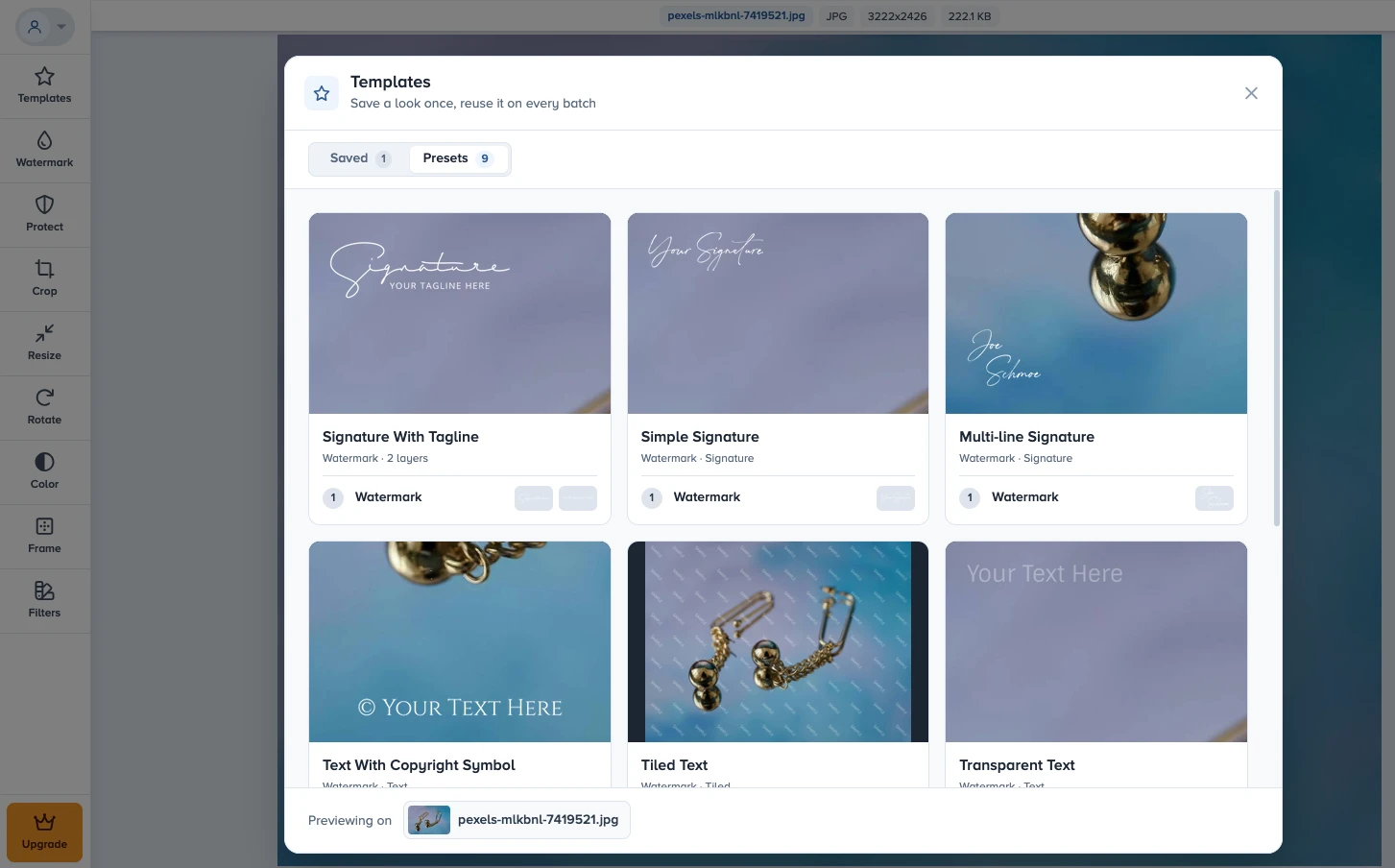
Watermark.ws offers nine ready-made presets with various fonts and text styling options, which can be used as a foundation for a simple text-based logo.
However, this feature is available only in the premium version of the app.
User reviews and reputation of Watermark.ws
At the time of writing this review, Watermark.ws has a rating of 4.8 out of 5 on Trustpilot, based on 664 reviews.
8. Pixlr
Pixlr also frequently appears on lists of recommended photo editors that allow you to add logos to images. However, when using the app for the first time, you get the impression that it is geared toward more complex tasks. The interface offers a wide selection of tools, and it isn’t immediately clear where to begin.
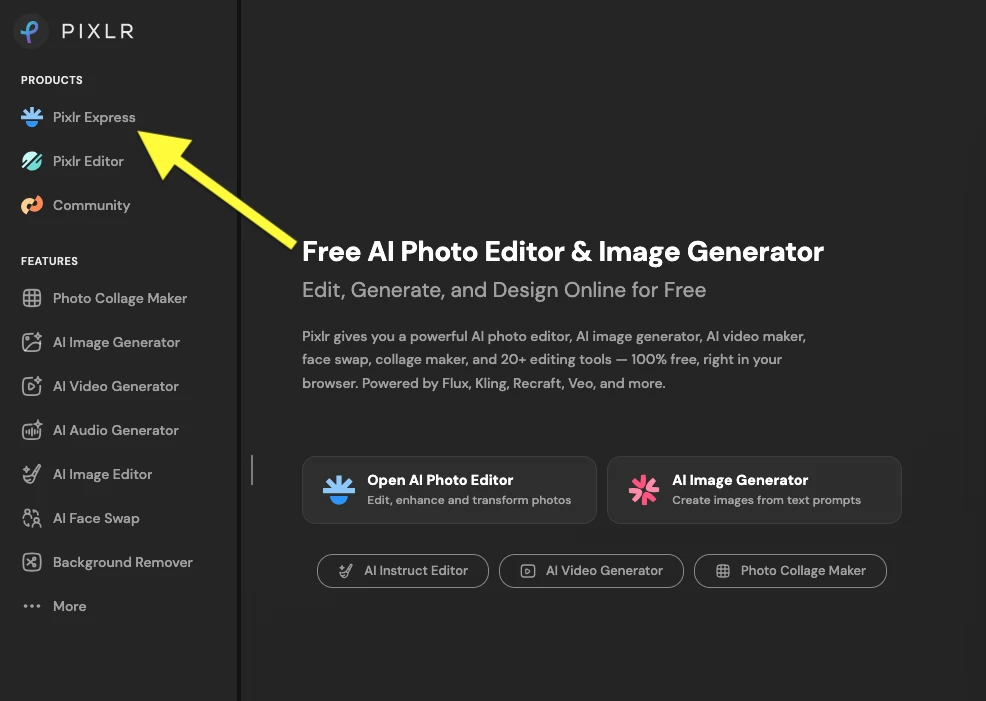
Two editors are available to choose from:
- Pixlr Express is a simpler version, suitable for adding a finished logo to a photo.
- Pixlr Editor is an advanced photo editor, which is quite similar to Photoshop – you edit images using layers.
For our task, it is more convenient to use Pixlr Express.
How to add a logo to a photo in Pixlr Express
To begin, upload a photo to the editor. Pixlr will then suggest resizing the image. If you wish to keep the original resolution, select Original and click Apply.
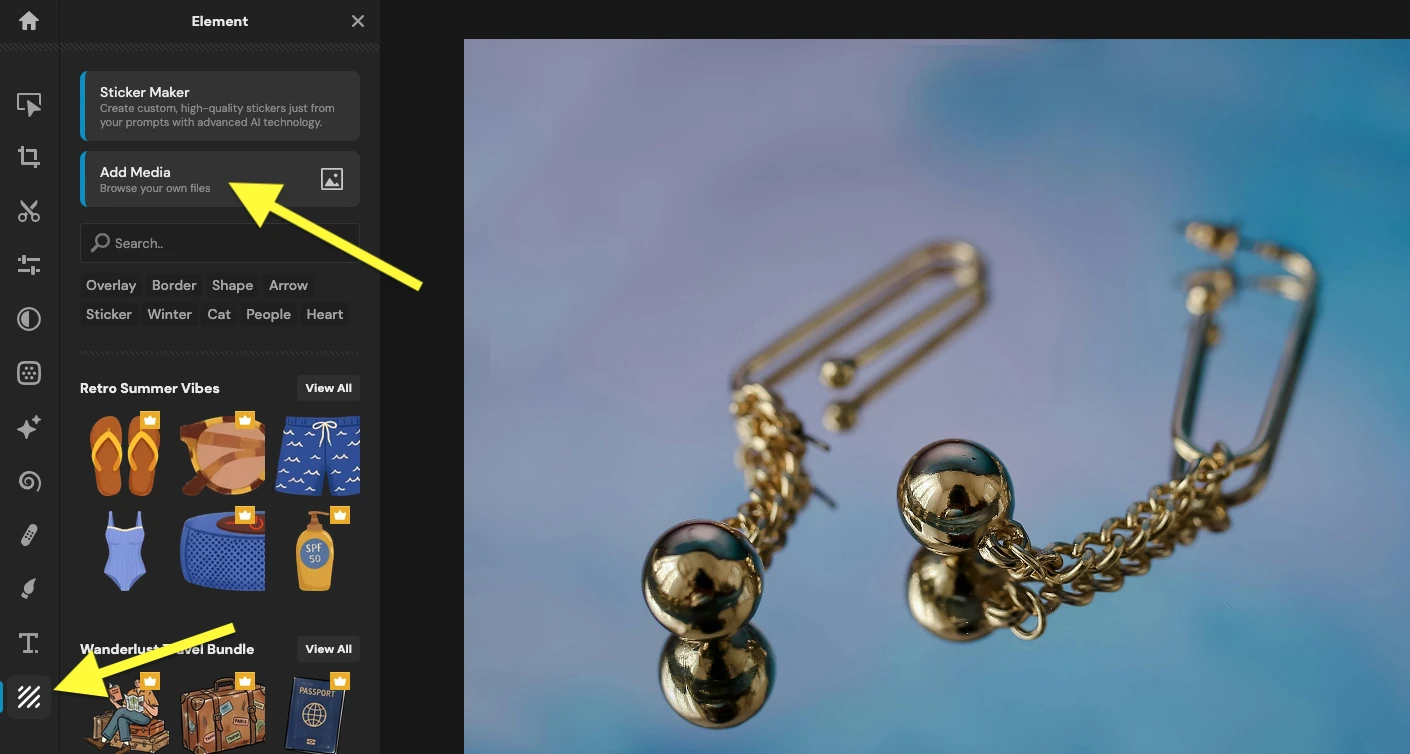
Next, locate the Element section at the bottom of the toolbar and select Add Media to upload your logo file.
During our testing, we didn’t run into any restrictions regarding the format of the logo. However, it is best to prepare a file with a transparent background in advance, as we were unable to remove an opaque background using the tools available in Pixlr Express.
Available editing capabilities
Things aren’t straightforward when it comes to editing capabilities.
On one hand, the app offers a wide range of tools for color adjustment and adding various effects. On the other hand, some of them aren’t organized intuitively. It isn’t always clear how a particular setting works, and the results of the changes made can sometimes be difficult to notice.
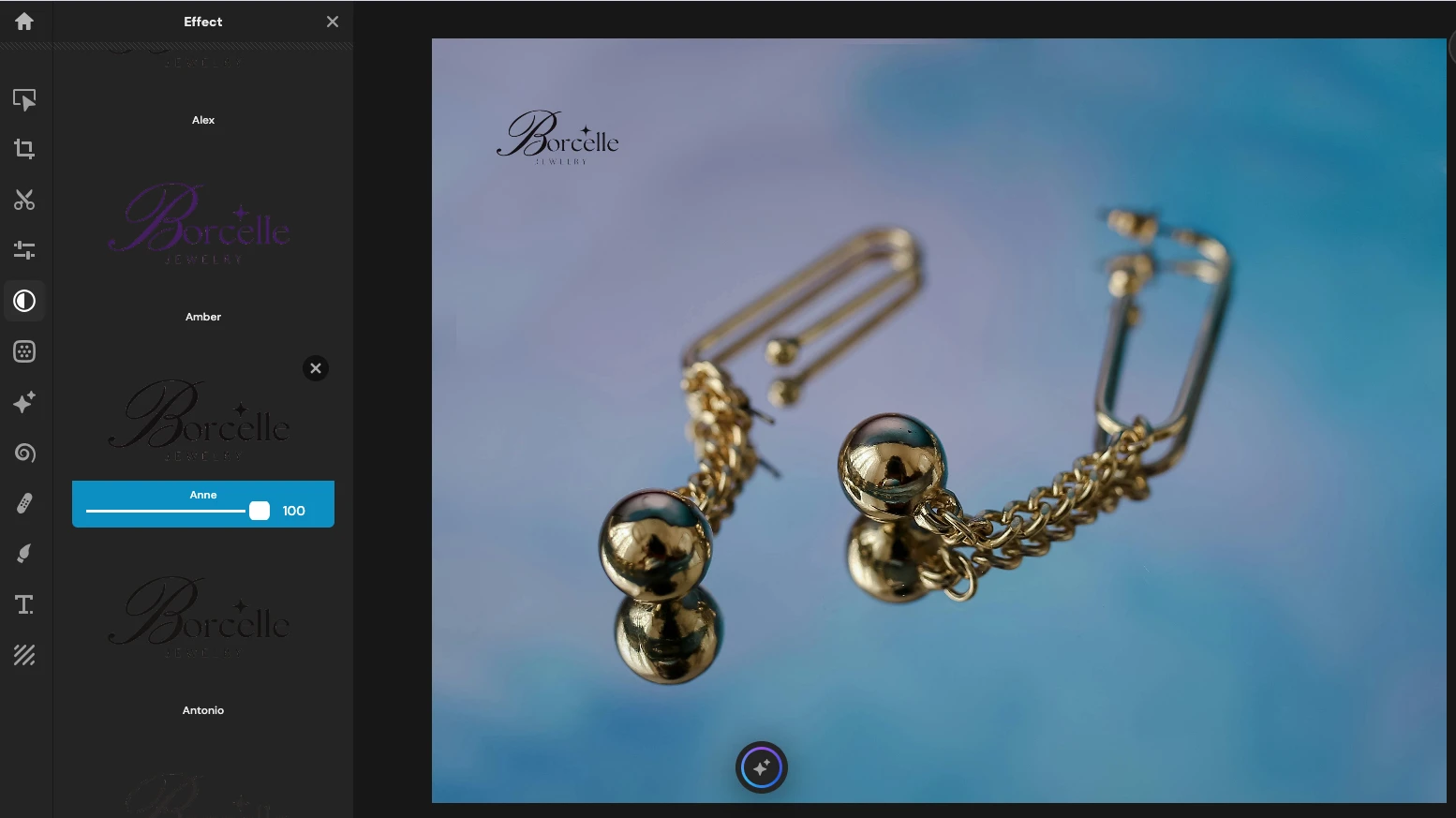
It might be better to avoid spending a lot of time exploring every single feature. Instead, once you import and select your logo, focus on the following three sections:
- Arrange allows you to adjust the opacity and position of the logo.
- Adjust offers tools for tweaking shades, contrast, and saturation.
- Effect contains ready-made effects and styles.
Once you’ve finished editing, click Save in the bottom-right corner to save the photo with the logo.
Is it possible to add a logo to several photos at once?
Pixlr Express isn’t designed for adding logos to batches of images. You can only upload one photo at a time into the editor.
There is no option to save logo settings as a template for reuse, either.
Therefore, if you need to add the same logo to several photos, you’ll have to process each image individually.
Is it possible to create a logo from scratch?
Pixlr Express doesn’t offer a full-featured tool for creating brand logos. However, the editor includes a large collection of stickers, decorative lettering, and other graphic elements, some of which are available for free.
It goes without saying, but this collection will definitely be insufficient for something complex. Yet it should be suitable if you need to add a simple text-based logo or an eye-catching graphic element.
User reviews and reputation of Pixlr
Although Pixlr is often recommended by Google and AI assistants, user reviews of it are quite mixed.
At the time of writing this review, Pixlr’s rating on Trustpilot is 2.1 out of 5, based on 185 reviews.
Among the most frequent complaints are unexpected charges and automatic subscription renewals that users had not been warned about far enough in advance.
In addition, users have complained about changes introduced in recent updates – specifically, stricter limitations on the use of certain features and the addition of new paywalls. According to some reviewers, these changes have made the editor significantly more difficult to work with and less user-friendly.
Summing Up
As mentioned at the beginning of this comparison guide, our goal is not to declare winners and losers. Each of the apps we’ve examined has its own target audience. Their respective features and limitations may carry different levels of importance depending on the user’s specific tasks.
Our testing has shown just how differently popular photo editors handle what would seem to be a simple task: adding a logo to a photo.
Therefore, when choosing an app, you should primarily consider your own needs: how often you plan to add a logo to your photos, whether you already have a logo in a supported format, whether you require additional editing tools, and whether you intend to process a large number of images at once.
The answers to these questions will help you choose a tool that allows you to achieve the desired result without unnecessary steps or expenses.